Getting started
This is a prototype. Keep your official charts and your paper backup.
Installing Lookout
Download the build for your platform from the latest release.
| Platform | What it runs on |
|---|---|
| macOS | macOS 26 Tahoe or later, Apple silicon |
| Linux | Ubuntu 24.04 or later, amd64 or arm64. Other distributions take the tarball |
| Windows | Windows 10 1809 or later, x64 |
| Android | Android 7 or later, arm64 |
| iPhone and iPad | No download yet. Build it with Xcode |
Installing on macOS
With Homebrew:
brew install --cask beetlebugorg/tap/lookout-marine
Without it, open the .dmg and drag LookoutMarine to Applications.
The app and the disk image are signed and notarized, so macOS does not block them. The notarization ticket is stapled to both, so the first launch needs no network connection.
Installing on Linux
On Ubuntu, or another Debian-based distribution, install the .deb for your architecture:
sudo apt install ./lookout-marine_*.deb
apt installs the libraries Lookout needs, including GTK 4 and the Vulkan loader.
On any other distribution, use the tarball. It unpacks into /usr:
sudo tar -C / -xzf LookoutMarine-*-linux-x86_64.tar.gz
lookout-marine
The tarball has no dependency list. Install GTK 4.10 or later, a Vulkan loader, and a Vulkan driver for your graphics card yourself.
Installing on Windows
Unzip the archive where you want to keep it, then run LookoutMarine.exe. The archive includes everything the app needs.
The build is unsigned, so SmartScreen stops the first launch with Windows protected your PC. Choose More info, then Run anyway.
Installing on Android
Download the .apk on your tablet or phone and open it. Android asks for permission to install apps from that source. Grant it to continue.
The build is arm64 only. It does not run on an x86 tablet or in an x86 emulator.
Running Lookout on iPhone and iPad
There is no App Store build and no TestFlight build yet. Build the app with Xcode and run it on your own device. The steps are in macOS, iPadOS and iOS.
Updating to a new release
Homebrew updates the Mac app:
brew upgrade --cask lookout-marine
On the other platforms, download the new build and install it over the old one. Your charts, connections, and settings are kept.
Building Lookout from source
The developer guide has the build steps for each platform: macOS, iPadOS and iOS, Linux, Windows, and Android.
Getting your charts
The app comes with no charts. NOAA publishes the ENC cells for United States waters at no cost. Download the whole library as one file, All_ENCs.zip, or the cells for your area, from NOAA's ENC page. Each cell is a file such as US5MD1MC.000.
Most other hydrographic offices sell their ENCs, and most sell them encrypted with S-63, which the app cannot read yet. Any unencrypted S-57 cell works, whoever published it.
Converting the cells into charts
An ENC cell holds survey data, not a drawn chart, so Lookout converts each cell when you add it. Give it the .zip as you downloaded it, or the folder you unpacked it into, and it finds and converts every cell inside.
The conversion runs once per folder or archive. It shows progress, and you can stop it and resume later. It converts the wide-area charts first, so a stop partway still leaves charts that cover the whole passage.
Lookout stores the converted charts in its own folder and never writes to your download. They stay after a restart, so each set of cells converts one time.
Opening your charts
Open the whole download, not a single cell. The app draws the most detailed chart available at each point and stitches the seams, the way a chart table works: the harbor chart where you have one, the coastal chart around it.
- Mac: File ▸ Open Chart… (⌘O). The panel takes a folder, a
.zip, or one cell. - Windows: Open Charts… (Ctrl+O) for a folder, Open Chart File… (Ctrl+Shift+O) for a
.zipor one cell. - Linux: Open Chart Folder… (Ctrl+O), or Open Chart Archive… for a
.zip. - iPad and iPhone: the gear, then Charts ▸ Add Charts…. You can also drop the folder into the app with Files or the Finder.
- Android: the gear, then the Charts tab and Choose library folder…. Browse to your download and press Import. Android asks for file access first, because Lookout reads the charts in place instead of copying them.
When no chart is open, the same picker sits in the middle of the window:
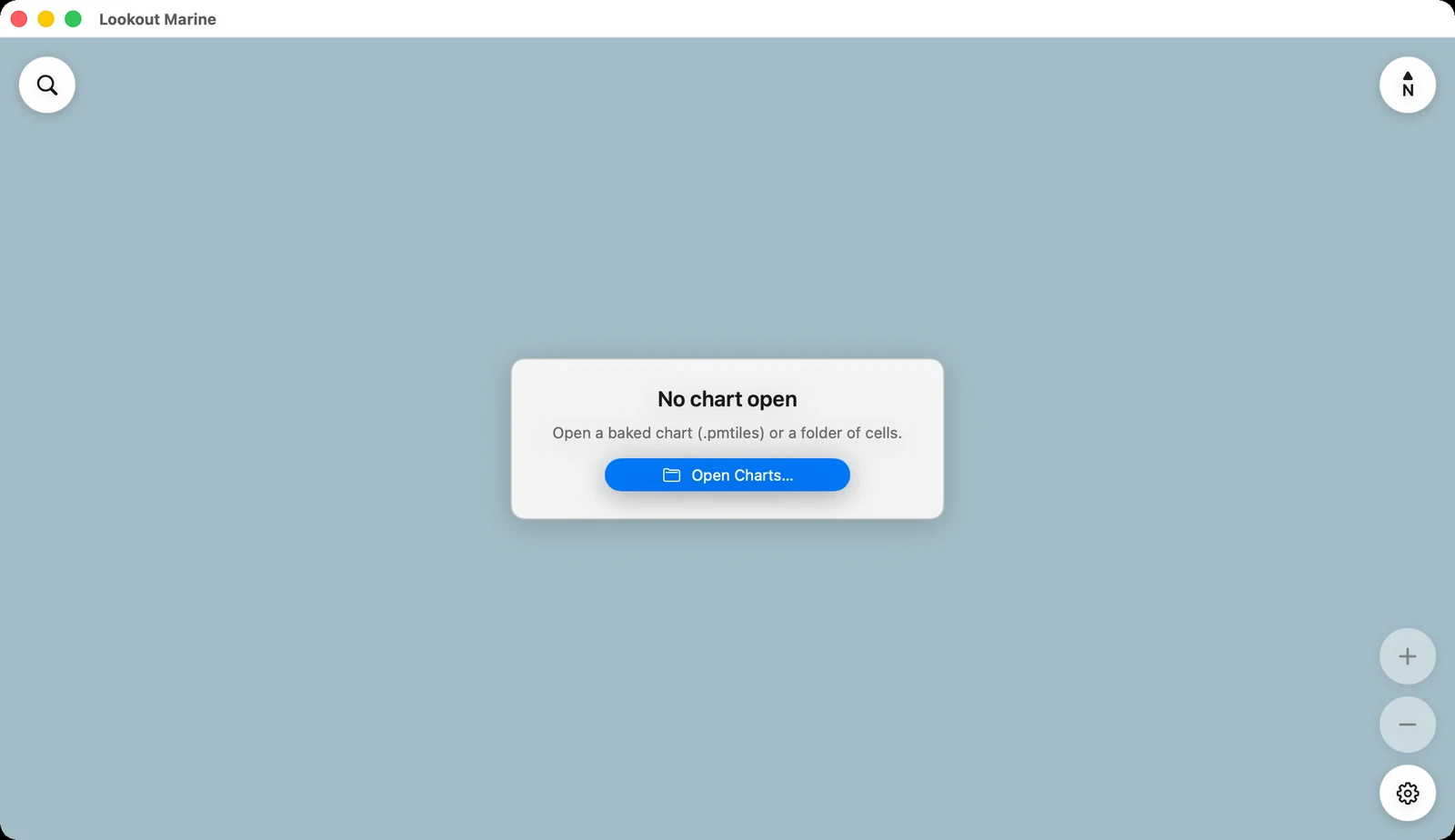
The app reopens where you left it.
Finding your water
Two ways to reach your area:
- Type a position in the search field, at the top left.
38.978, -76.492and38°58'40"N 076°29'32"Wboth work, latitude first. - Click the blue scale in the bar at the bottom and pick Harbor.
Next: what everything on the screen means, and how to move the chart.