Software
The iPhone and Apple Watch apps
The deck on the iPhone and the watch: the apps, the complications, the widgets, the Live Activity and the push messages.
An iPhone app and a watch app for the Printdeck. They use the API of the decks on the local network.
- Home screen: a card for each deck, with the state, the print, the time left, the progress and a picture: the camera, else the model, else the status screen of the deck. A tap opens the deck screen. Add connects another deck. Menu > Remove on the deck screen removes a deck.
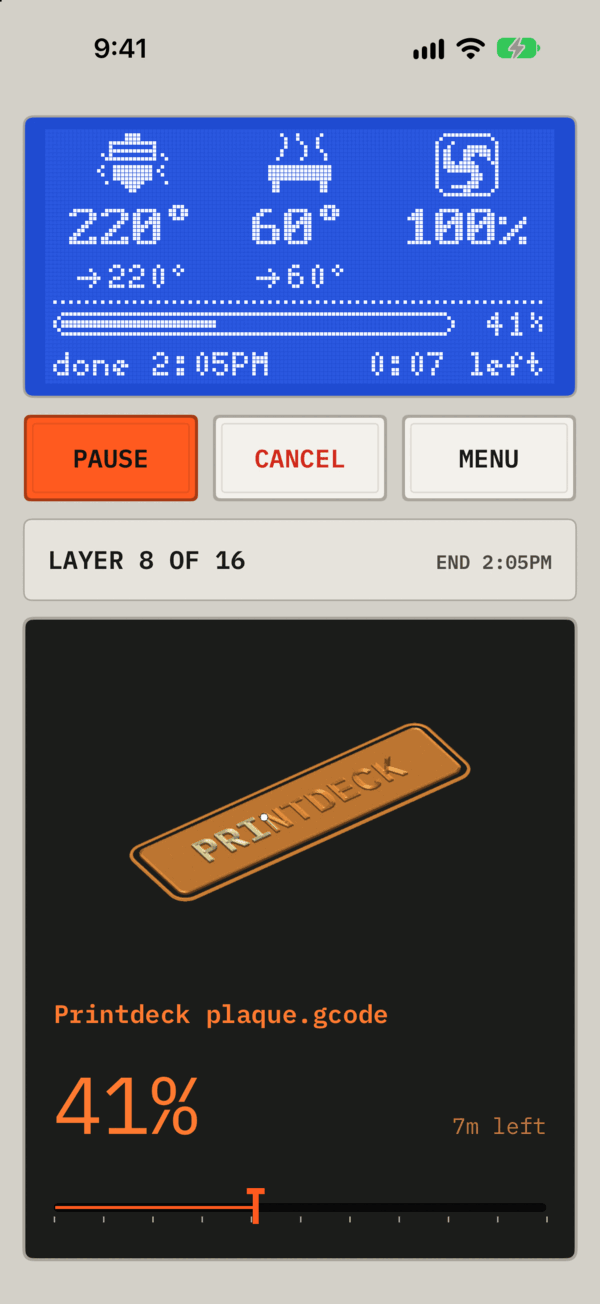
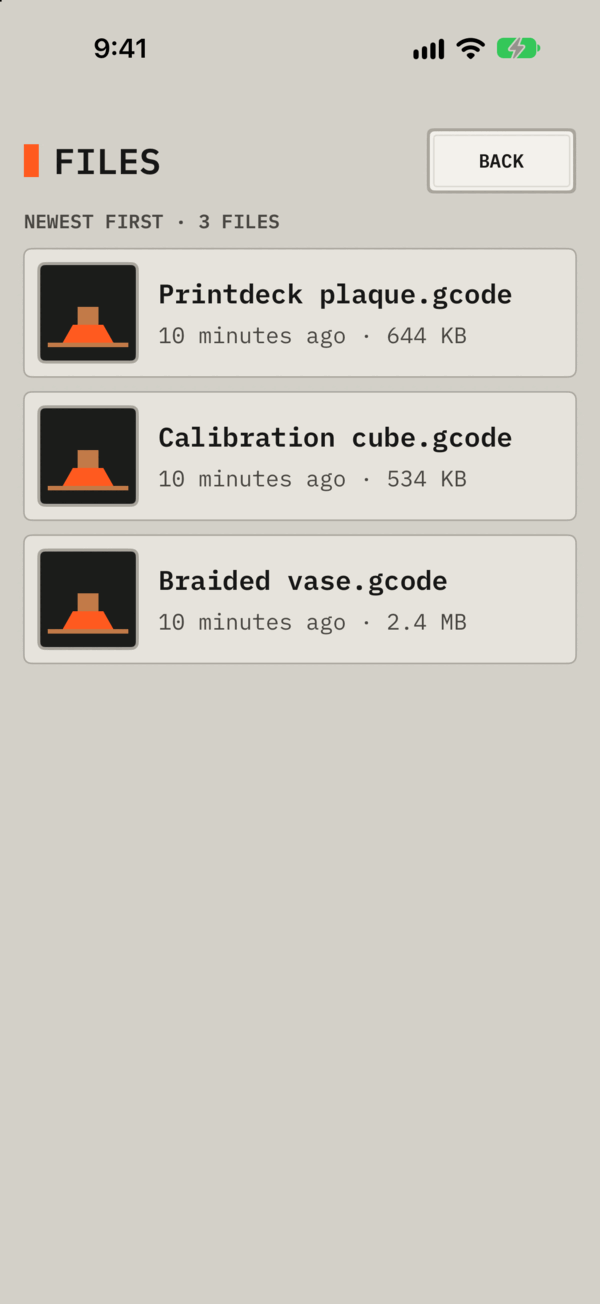
- Deck screen: the deck screen in its tall layout. It shows the print, the roll, the model and the camera. It has Pause, Resume and Cancel, and Print a file. Tap the camera for a full screen view. With two cameras, tap a camera name at the top of that view, or swipe, to switch. The app keeps the choice for each deck, and the watch shows the same camera. Time lapse lists the videos of the deck. The app converts a video to H.264 on the iPhone, plays it, and has Share and Save to Photos.
- Resin decks: a deck with
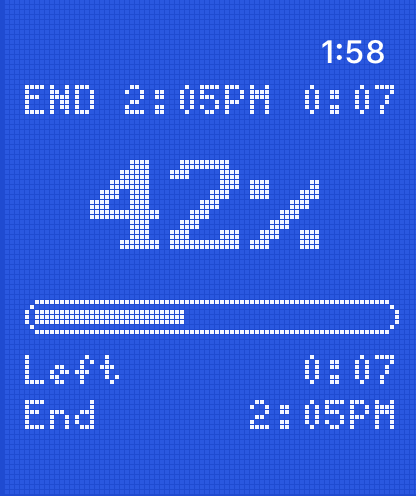
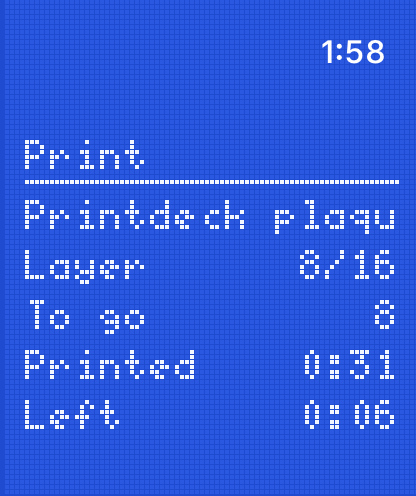
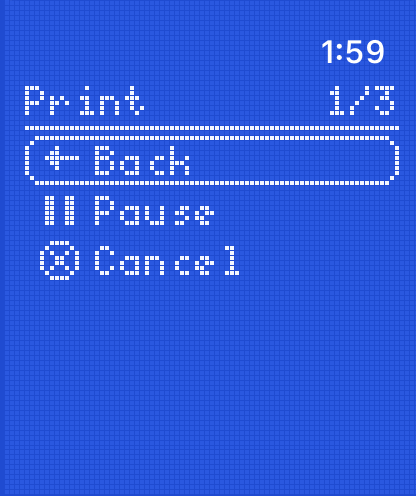
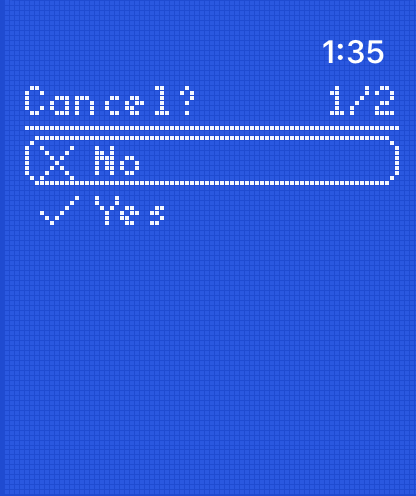
processresin in/api/plugin/printdeckhas no Print a file, no Resume and no roll. Only a press on the touch screen of the deck starts or resumes a resin print, because both turn on the UV light. The app has Pause and Cancel. - Watch app: the print of the deck that prints, or of the first deck, on a blue dot-matrix display. Turn the Digital Crown for the camera, the model, the layer times and the filament. Tap for Pause, Resume or Cancel.
- Complications and widgets: the progress and the time left, on the watch face, the Home Screen and the Lock Screen. Edit a widget to choose its deck. The default is the deck that prints: with two prints, the print that ends first.
- Live Activity: the print on the Lock Screen and in the Dynamic Island, for the deck that prints. With two prints it shows the print that ends first. It moves to the other print when its own print ends, or when the other print ends 5 minutes sooner.
- Push messages: print done, print failed, paused, first layer done, and a short roll.
The apps read all decks every 5 seconds while they are open.
Install
Install the apps from Xcode. The deployment targets are iOS 17 and watchOS 11.
- Set
DEVELOPMENT_TEAMinproject.ymlto your team ID. Runxcodegenin this folder. - For a bundle prefix other than
org.beetlebug.printdeck, changeBUNDLE_PREFIXinproject.ymland runxcodegen. - Open
Printdeck.xcodeproj. Choose thePrintdeckscheme and your iPhone, and run. - For the watch, choose the
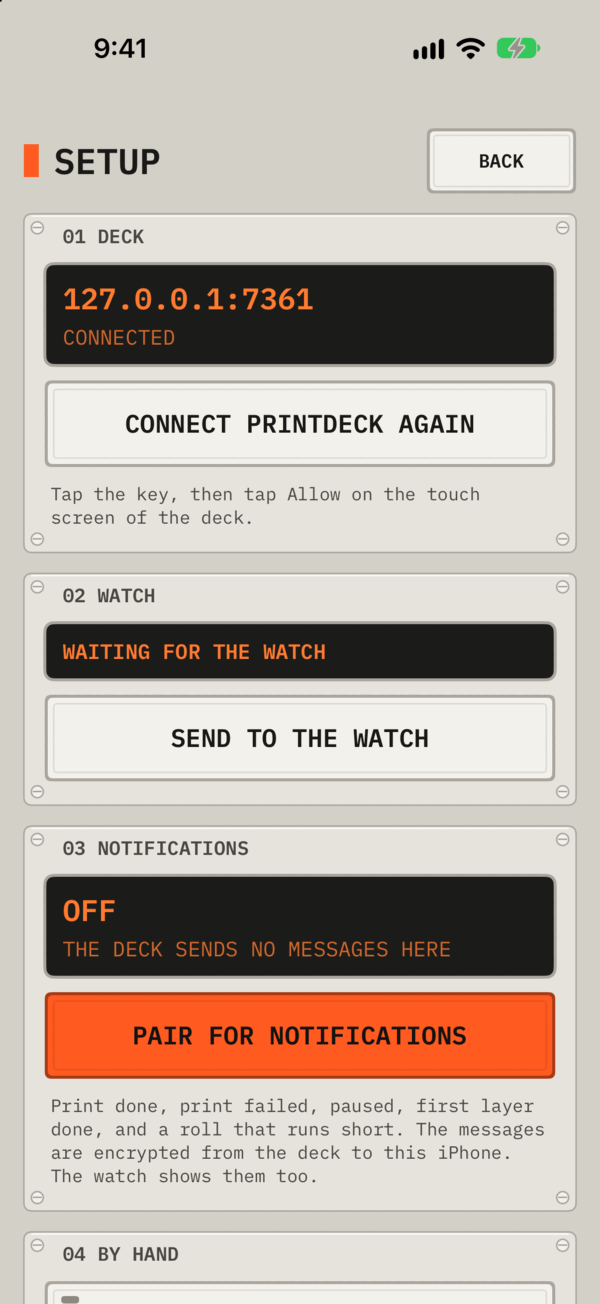
PrintdeckWatchscheme and the watch, and run. Turn on Developer Mode on the watch. The watch and the Mac must be on the same network. - Open Printdeck on the iPhone. Tap Connect, then tap Allow on the touch screen of the deck. Add connects the next deck.
- To add the complication, edit the watch face and choose Printdeck.
If Xcode fails to find the watch, turn off Bluetooth on the iPhone for a minute.
If the deck is missing from the list, open By hand under Add. Type the address, and tap Ask the deck for a key. Or type the key from http://printdeck.local/system and tap Save.
Push messages
- On the iPhone, open the deck, then Menu > Notifications, and tap Pair for notifications. Each deck pairs on its own. With several decks the subtitle of a message is the name of the deck.
- Allow the notifications.
- The deck sends "This phone gets the messages of your prints."
Unpair removes the phone. Settings > Phones on the deck has the same list. Each message is encrypted for the paired phone. The relay and Apple see only the encrypted message (cloud/relay/README.md).
How the pairing works:
- The app posts its device token to the relay (
POST /register), and gets a send token. - The app makes an X25519 key pair, and pairs with the deck (
POST /api/plugin/printdeck/push/pair). Both make the message key with HKDF-SHA256 (the salt is the device token, the info isprintdeck push v1). - The notification service extension decrypts the key
eof each push (AES-256-GCM).
A build from Xcode uses the APNs sandbox. A TestFlight or App Store build uses production. PUSH_RELAY in project.yml is the URL of the relay.
Away from home
Sign in with passkey on the Projects tab signs in to printdeck.beetlebug.org with the passkey of the owner or of a member, the same passkey as the web site. iOS offers the passkeys of the iPhone and a security key, such as a YubiKey, over USB-C, Lightning or NFC. A key with no passkey for Printdeck sends no user handle, and the app shows "This key has no passkey for Printdeck." The token is in the keychain group, and a 401 asks for the sign-in again. An owner session works for 14 days.
When a deck does not answer, its card shows the live print of the deck from the projects of the session: the model, the progress and the time left. The app finds the print by printer_id of the deck (from /api/plugin/printdeck), or by the name of the printer when the deck has sent no ID. For the owner, the live record of each printer (live in GET /api/v1/printers) fills the card of a print with no project. A print of a project comes first, because it has the picture of the model. A member sees only the prints of the projects.
The sign-in needs the entitlement webcredentials:printdeck.beetlebug.org, so it works only in a build that is signed with the team of project.yml. The service serves /.well-known/apple-app-site-association for the app.
The routes of the service:
POST /api/v1/auth/login/begin, then the assertion of the passkey, thenPOST /api/v1/auth/login/finish: the token, the kind, the name and the expiry time.GET /api/v1/projects, andGET /api/v1/projects/<id>for the live prints (live).GET /api/v1/printers, for the owner: the live record of each printer (live).
Projects
The app has two tabs: Prints, with the cards of the decks, and Projects. The Projects tab has the sign-in, and after it a card for each project with what it does now: the prints that run, the prints ready for pickup, the plates that wait and the files in the queues. A project shows its overview, as the web page has it:
- Now: the live prints, and for the owner the plates that wait for an approval, with Approve and Reject (with a reason), and the approved plates with Send to a printer of the same process. 3D preview opens the build page of the web site with the session of the app.
- Ready for pickup: the prints with Ready, and with no Delivered and no Test, with Delivered for the owner.
- In the queues: the files of the project in the queues of the printers.
- Newest prints: a tap opens the print, with its marks (owner), its notes, its title and source (owner), and its photos.
- What happened: the feed of the prints, the photos, the plans, the plates and the notes.
Take photos keeps the camera open and sends each photo after it is taken: to the print on the page of a print, else to the project. A member changes only the notes of a print.
The routes: GET /api/v1/projects/<id>, PATCH /api/v1/projects/<id>/prints/<print>, POST /api/v1/projects/<id>/builds/<build>/plates/<n>/approve, reject and send, GET /api/v1/printers, and POST /api/v1/projects/<id>/photos with the upload to its grant and POST /api/v1/projects/<id>/photos/<photo>/done.
The queue
The deck screen shows the queue of the deck: the files in their order, each with its material and its time, and the total time. Up and Down move a file, and Remove deletes it from the queue. The app has no Start: only a press on the touch screen of the deck starts the next file. Away from home, a card shows the count of the files in the queue of its deck (owner), and a project shows its files in the queues.
At the end of a print with files in the queue, the deck sends "Next in the queue". A tap on a push message opens the deck screen of its deck.
The routes of the deck: GET /api/plugin/printdeck/queue, POST /api/plugin/printdeck/queue/<id>/move with {"by": -1}, and DELETE /api/plugin/printdeck/queue/<id>.
Network
The deck serves plain HTTP on the local network (NSAllowsLocalNetworking). The deck announces itself with Bonjour as _octoprint._tcp. The app saves its IPv4 address, because watchOS may fail to resolve printdeck.local. The address can have a port, as 192.168.1.50:8080.
API
The App Keys flow of OctoPrint gives the app its key, with no key:
POST /plugin/appkeys/requestwith{"app": "Printdeck on iPhone"}: the deck asks to allow the app, and the reply has a token.GET /plugin/appkeys/request/<token>: 202 while the deck waits, 200 withapi_keyafter Allow, and 404 after Deny or after 2 minutes.
All other requests have the header X-Api-Key:
GET /api/job,GET /api/printer: the job and the temperatures.GET /api/plugin/printdeck: the process (fdmorresin), the roll, the print, the main camera (camera), all cameras (cameras) and the status screen (lcd). A deck with noprocessis an FDM deck.GET /webcam/snapshot?w=..,GET /webcam/stream?w=..&fps=..: the main camera. Addcamera=<id>for another camera, orcamera=picturefor the camera of the notifications.POST /api/job:{"command":"pause","action":"pause"},{"command":"pause","action":"resume"}and{"command":"cancel"}.GET /api/files?recursive=true, andPOST /api/files/local/<path>with{"command":"select","print":true}: the files, and a print.GET /api/plugin/printdeck/model.png?w=..&h=..&mono=1: the model of the print in 1-bit dots.POST /api/plugin/printdeck/push/pair,DELETE /api/plugin/printdeck/push/<id>: the pairing for push messages.GET /api/timelapse: the time lapse videos, with the print, the frames and the length of each underprintdeck.GET /downloads/timelapse/<name>sends a video (QuickTime, Motion JPEG), with Range requests, andGET /downloads/timelapse/<name>/stillits last frame.
Folders
Shared/: the API client (Deck.swift), the list of decks (Fleet.swift), the state of a deck (DeckModel.swift), the printer display (LCDScreen.swift, a port ofdeck/internal/lcd), the panel parts and the keychain store.Phone/,Watch/: the apps.Complication/,Widget/: the WidgetKit extensions.Notifications/,Push/PushCrypto.swift: the decryption of the push messages.Tests/: the tests ofPushCrypto(Product > Test with thePrintdeckscheme).icon/render.swift: draws the app icon. Runswift icon/render.swift <folder>, and copyAppIcon-phone.pngandAppIcon-watch.pnginto theAppIcon.appiconsetofPhone/andWatch/.project.yml: the XcodeGen file. After a change, runxcodegen.
Screenshots in the simulator
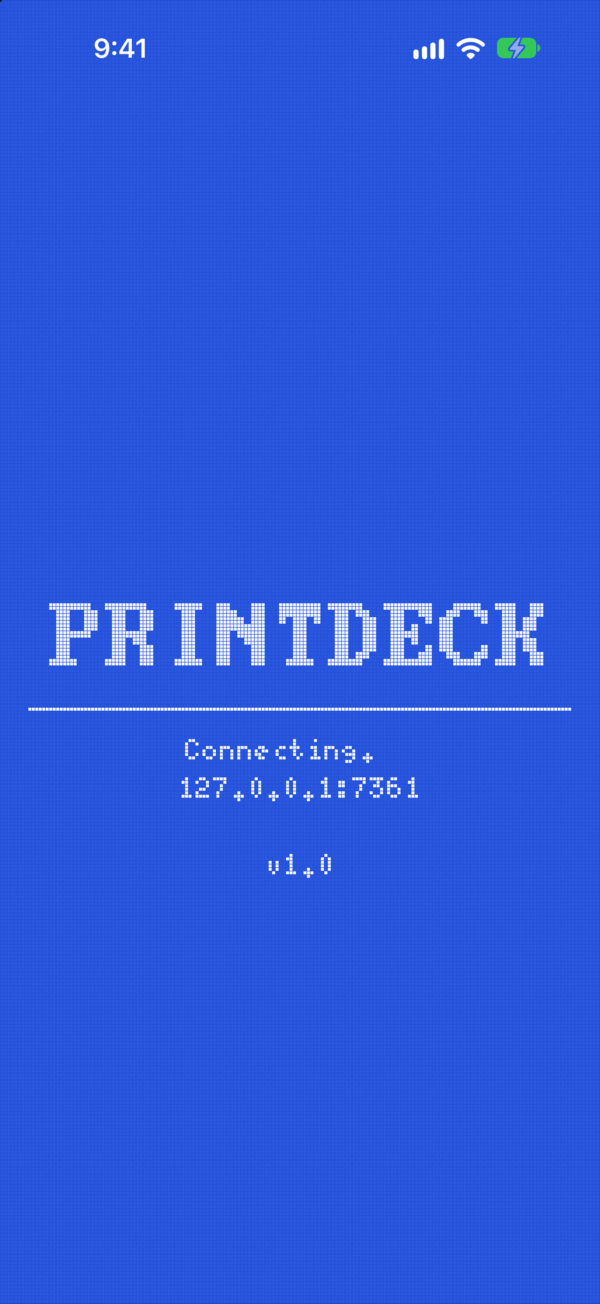
In a debug build, PRINTDECK_ADDRESS and PRINTDECK_KEY set one deck, and PRINTDECK_DECKS sets several, as TAZ|127.0.0.1:7361|key1,Phenom|127.0.0.1:7362|key2. PRINTDECK_SCREEN opens a screen: menu or cancel on the watch, deck, files, setup, camera or loading on the iPhone. The screens of a deck open the first deck. With xcrun simctl launch, add the prefix SIMCTL_CHILD_. The deck of printdeck app -sim reads its API key from OCTOPRINT_API_KEY.
License
The code in this folder is under the MIT License (LICENSE). The rest of the repository is under the AGPL. Shared/LCDScreen.swift is a port of deck/internal/lcd of the deck, by the same authors, under the MIT License here.
Shared/Fonts/: IBM Plex Mono, SIL Open Font License 1.1 (Shared/Fonts/OFL.txt).Shared/LCDFonts.swift: the X11 misc-fixed font 5x8 (public domain), and the glyphs of the VGA 8 x 16 font of the fntcol16 package (public domain), as the displays of Klipper have them.