The deck UI · tall
When something goes wrong
22When something goes wrong
When Klipper stops with an error, the deck shows the message.
- Read the message. It often names the setting in printer.cfg.
- After a stop or a power cut of the printer, tap Firmware restart.
- After a change to printer.cfg, tap Restart Klipper.
A Klipper error
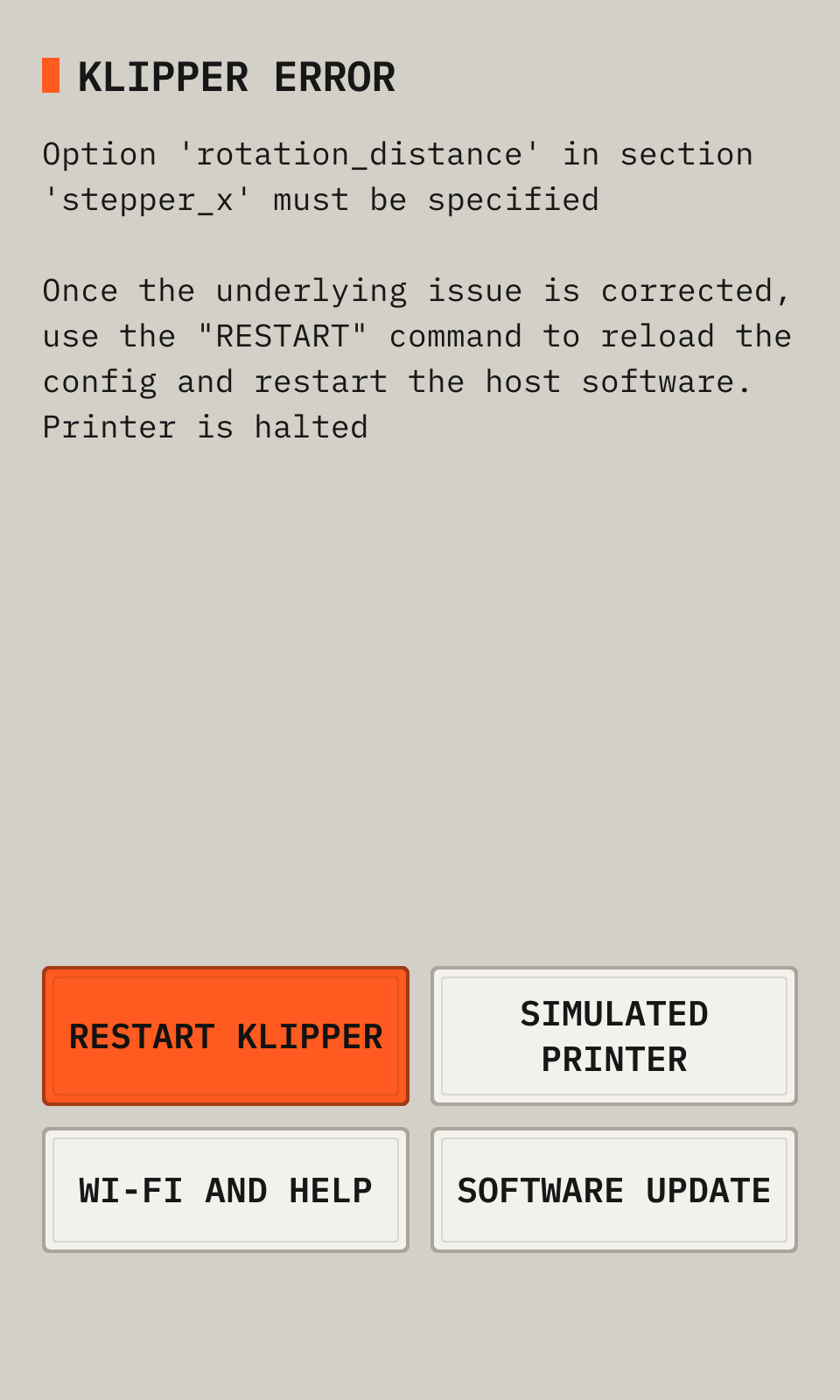
- 1MessageThe Klipper error.
- 2Restart KlipperReads printer.cfg again.
- 3Wi-Fi and helpThe network, the address and the password.
- 4Software updateInstalls a new version. It can fix the problem.
23Settings
The file printdeck.txt on the PRINTDECK partition holds the settings. Put the SD card in a computer to change it. The deck reads it at each start, and clears the Wi-Fi password in it.
| wifi_ssid, wifi_password, wifi_country | The Wi-Fi network |
| name, hostname | The name that slicers show, and the name on the network (hostname.local). Settings, Name on the deck sets both |
| timezone | The time zone |
| display_rotate | The screen turn: 90 or 270 turns a wide display to tall, 0 or 180 keeps the native shape. Empty is 0 for a tall display (the Touch Display 2) and 270 for a wide display |
| touch_invert_x, touch_invert_y, touch_swap_xy | 1 turns an axis of the touch screen |
| preheat_tool, preheat_bed | The temperatures of Preheat with no filament set |
| night_from, night_to | The hours of the night colors |
| printer.cfg (a file) | A Klipper config. The deck imports it at the next start. |
From the manual for a tall display. The deck draws every picture.