The deck UI · wide
Look after the printer
18Look after the printer
Machine has the information of the printer, the history of the prints, the macros, the console and the settings.
The Machine page
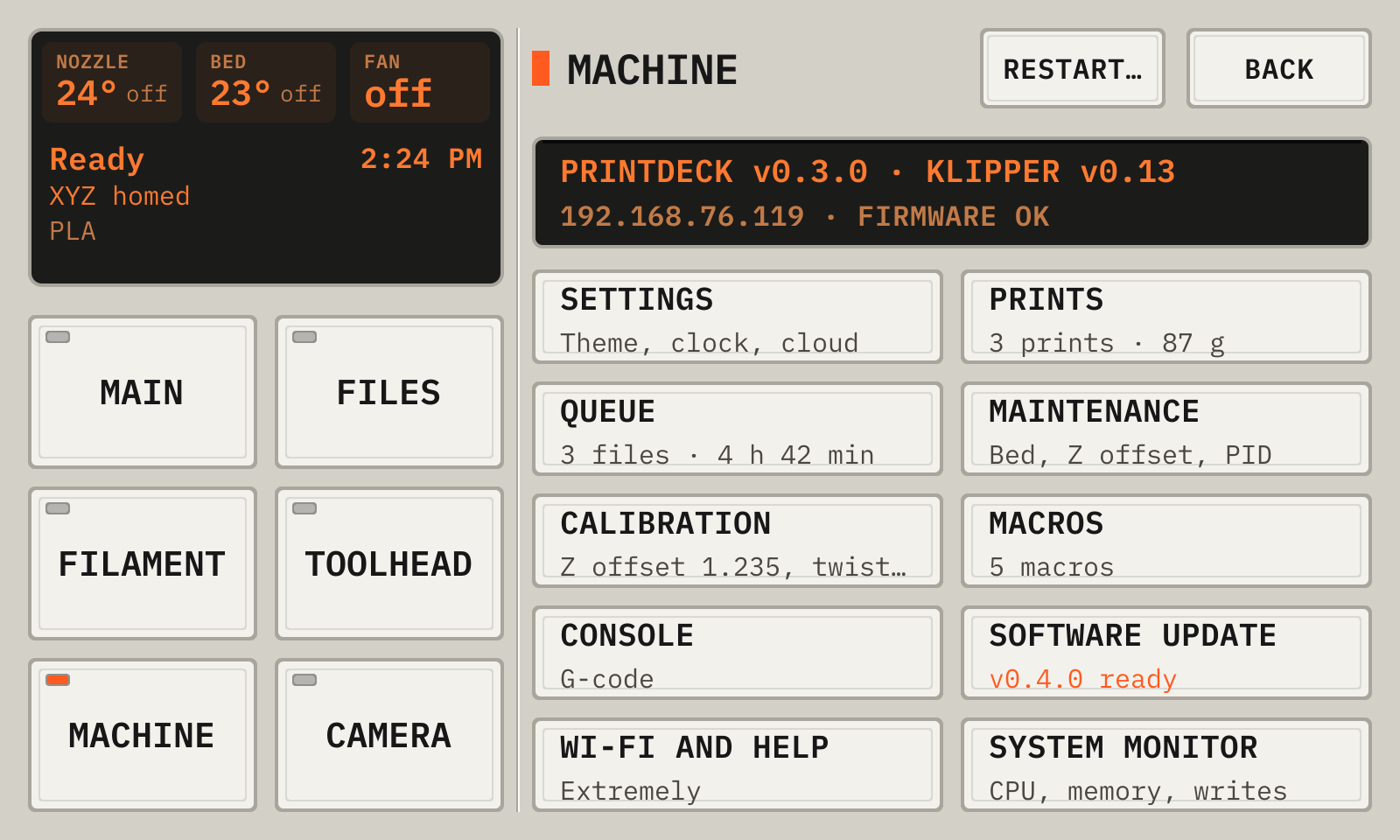
- 1Restart…Restarts Klipper or the board firmware, after a choice.
- 2InformationThe versions, the address and the state of the firmware.
- 3SettingsThe theme, the clock, the screen, the cameras and the messages.
- 4PrintsThe totals and the history of all prints.
- 5MaintenanceThe bed, the heaters, the firmware and the simulated printer. Orange text shows old firmware or results to save.
- 6CalibrationThe nozzle height, the pressure advance and the retraction.
- 7MacrosTap a macro to run it.
- 8ConsoleThe G-code console.
- 9Software updateShows and installs a new version. Orange text shows a new version.
- 10Wi-Fi and helpThe network, the password and the addresses.
- 11System monitorGraphs of the CPU, the memory and the SD card.
Restart…
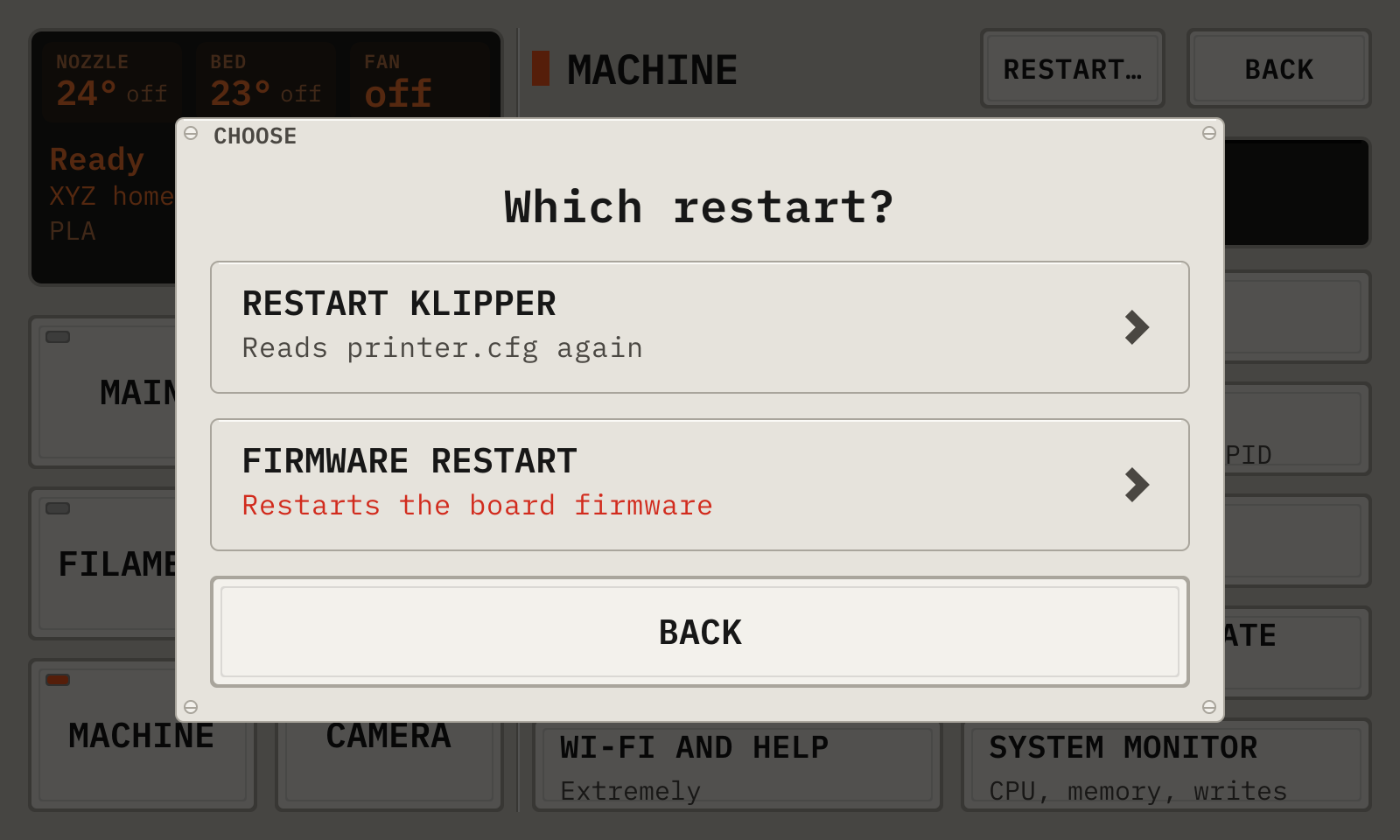
- 1Restart KlipperReads printer.cfg again. The firmware keeps running.
- 2Firmware restartRestarts the firmware of the board, for example after a stop.
Each restart asks again before it starts. During a print, Restart… is locked.
The Settings page
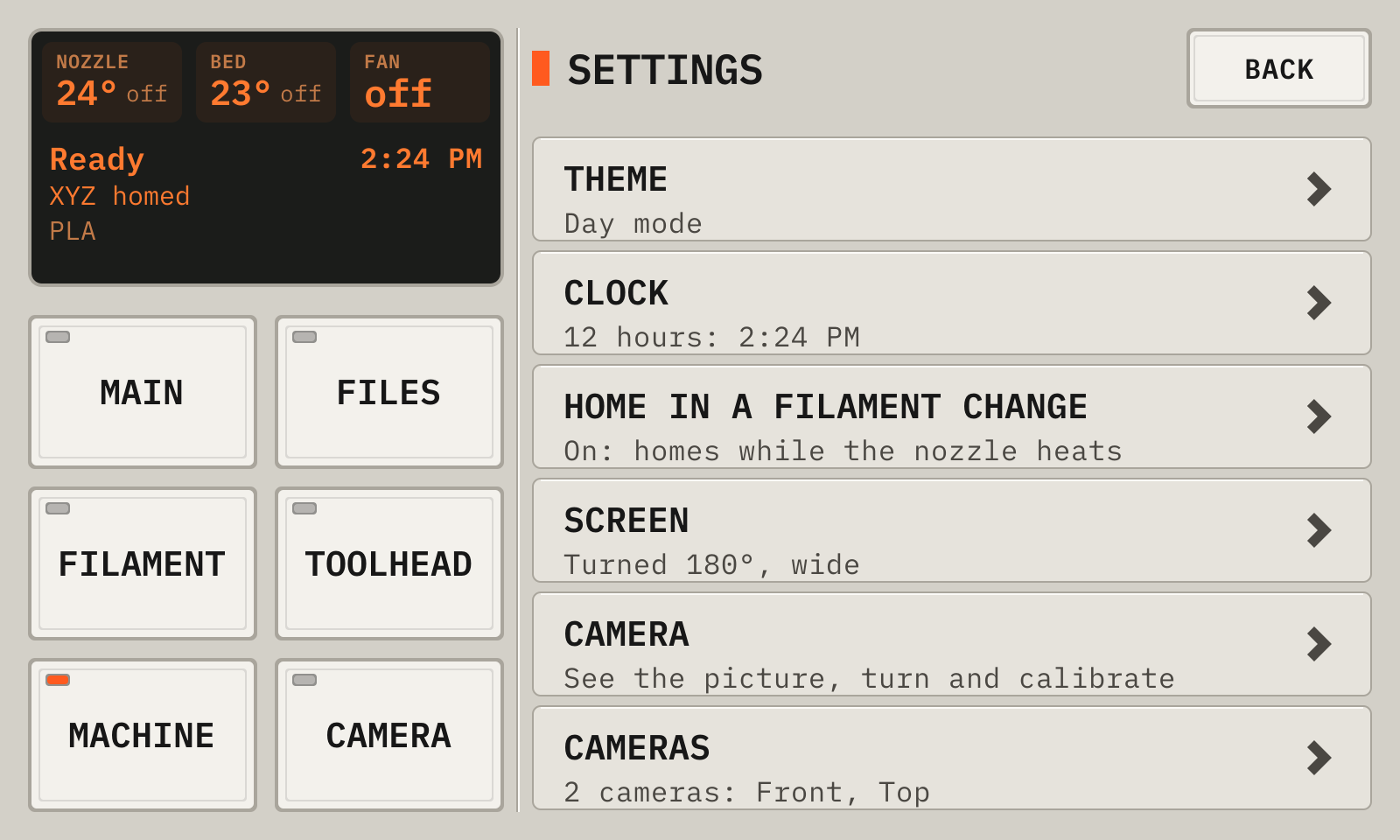
- 1ThemeDay, night, or auto.
- 2Clock12 or 24 hours.
- 3Home in a filament changeOn: the printer homes while the nozzle heats for a filament change.
- 4ScreenTap it to turn the screen a quarter turn. The deck restarts, and a print continues. This setting overrides display_rotate.
- 5CameraOpens the live picture, as the Camera key does.
- 6CamerasNames the cameras and sets their uses.
Each row opens its setting. A setting that is on or off has a check box. A setting with choices has a check at the choice now.
The Settings page, at the bottom
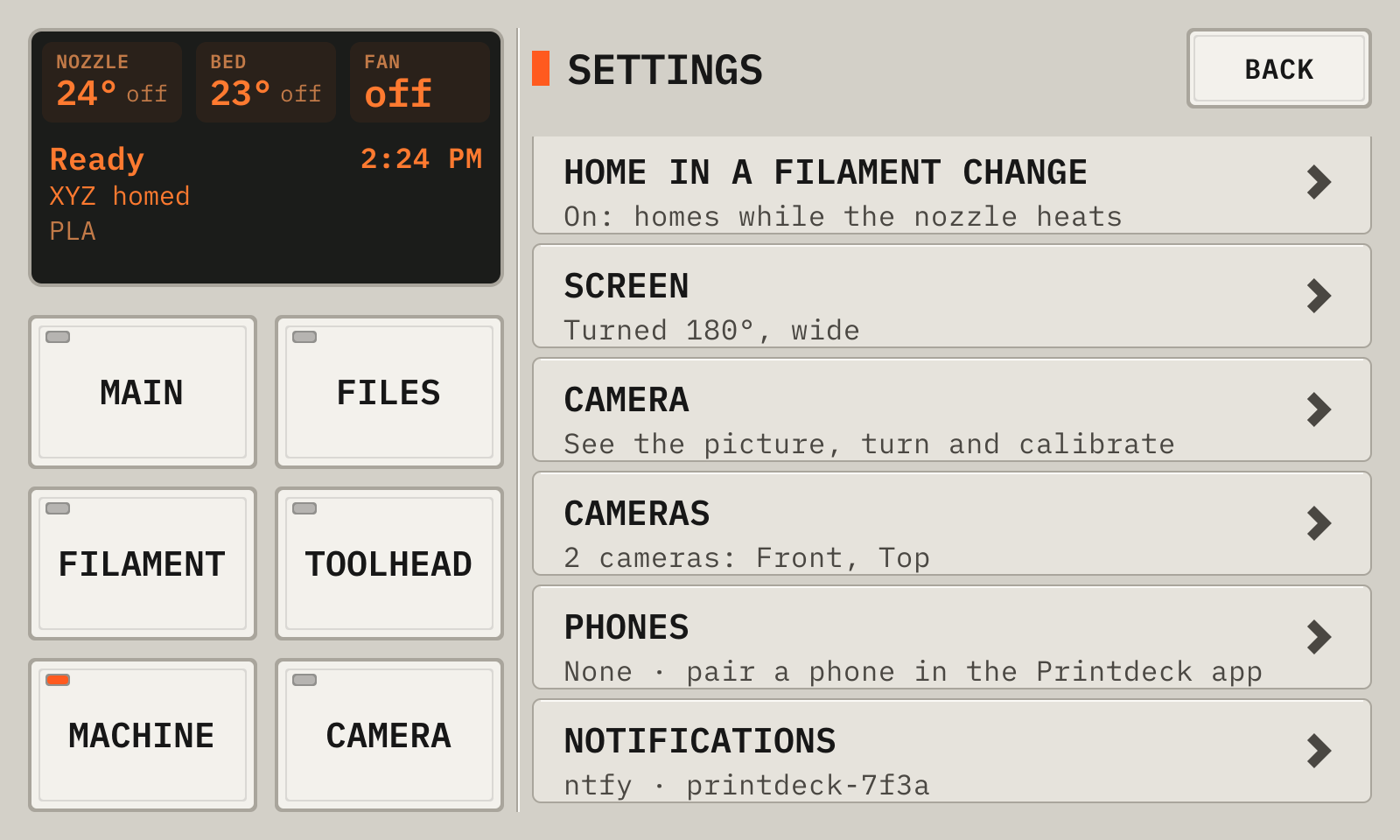
- 1PhonesThe phones that get push messages. Tap a phone in the list to remove it.
- 2NotificationsPush messages through ntfy. In the ntfy app, subscribe to a topic with a name that is hard to guess. Type the same topic here. An empty topic turns the messages off.
The Camera page
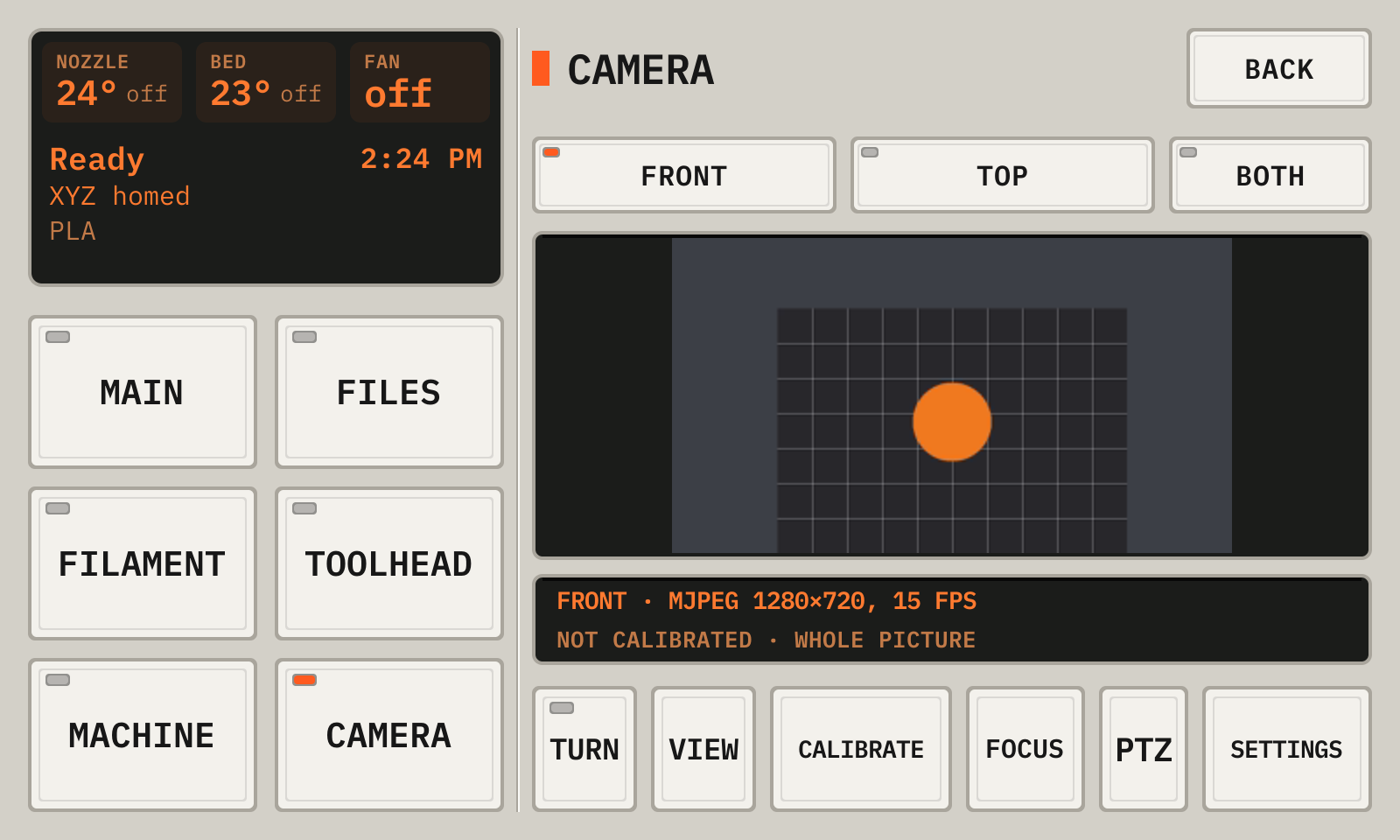
- 1TabsA tab for each camera that is on. Both shows all the cameras.
- 2PictureUse it to aim the camera at the bed.
- 3TurnOpens the turn of the picture: upright, 90° right, 180° or 90° left. Use it for a camera on its side or upside down.
- 4FocusShows the focus keys. Only a camera with a focus control has this key.
- 5PTZShows the zoom keys. Only a camera with a zoom control has this key.
- 6Camera settingsThe name, on or off, and the uses of this camera.
A camera runs only while somebody looks at it. With no camera, the apps show the deck screen.
If a camera shows too little USB bandwidth, move it to another USB port.
The focus of the camera
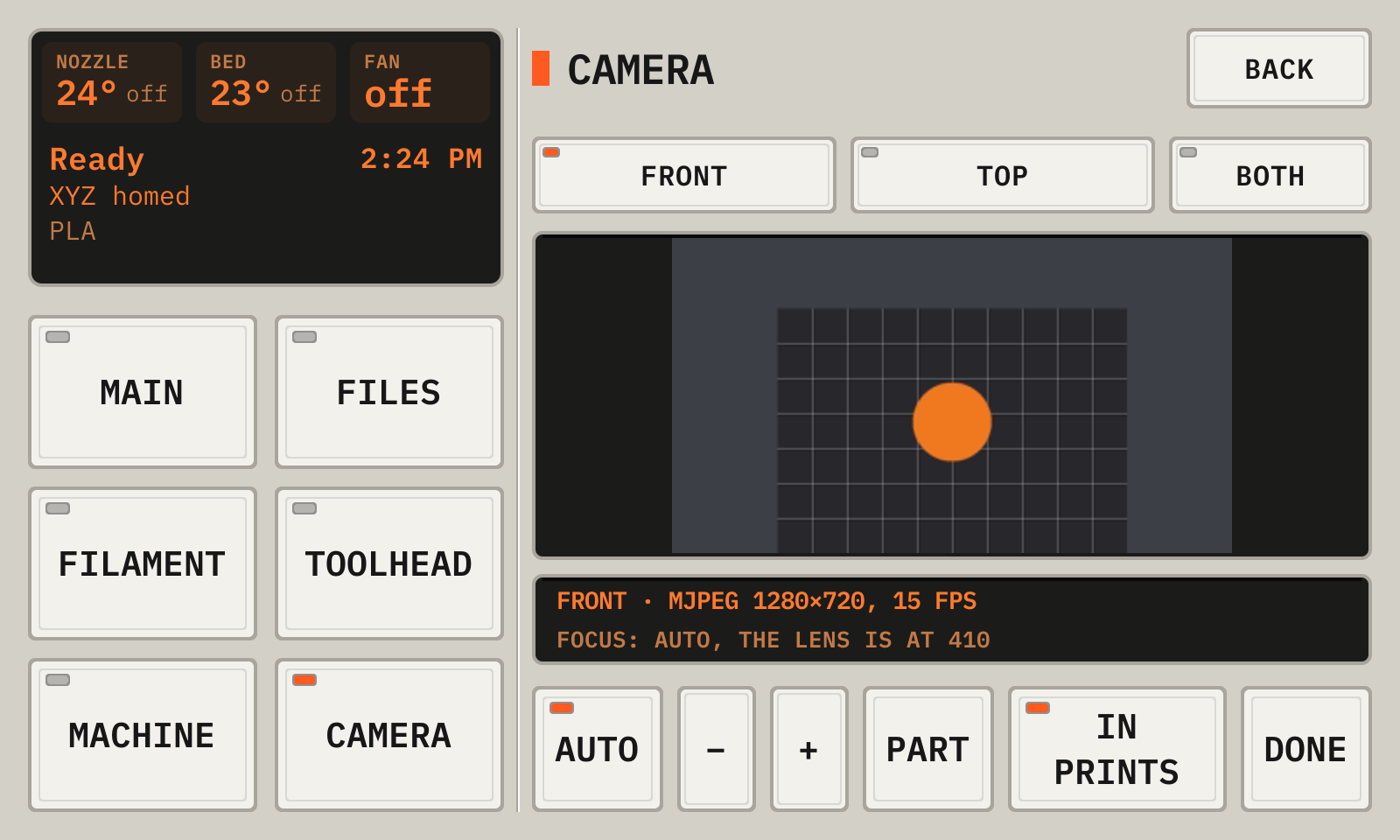
- 1AutoLit when the camera focuses itself. Turn the autofocus off to keep the lens where the autofocus put it.
- 2−Moves the lens one step. The autofocus goes off.
- 3+Moves the lens one step to the other side.
- 4DoneShows the other camera keys again.
A fixed focus keeps the picture sharp when the toolhead and the bed move. Set it while the picture shows the nozzle.
The deck keeps the focus of each camera, and sets it each time the camera starts.
The zoom of the camera
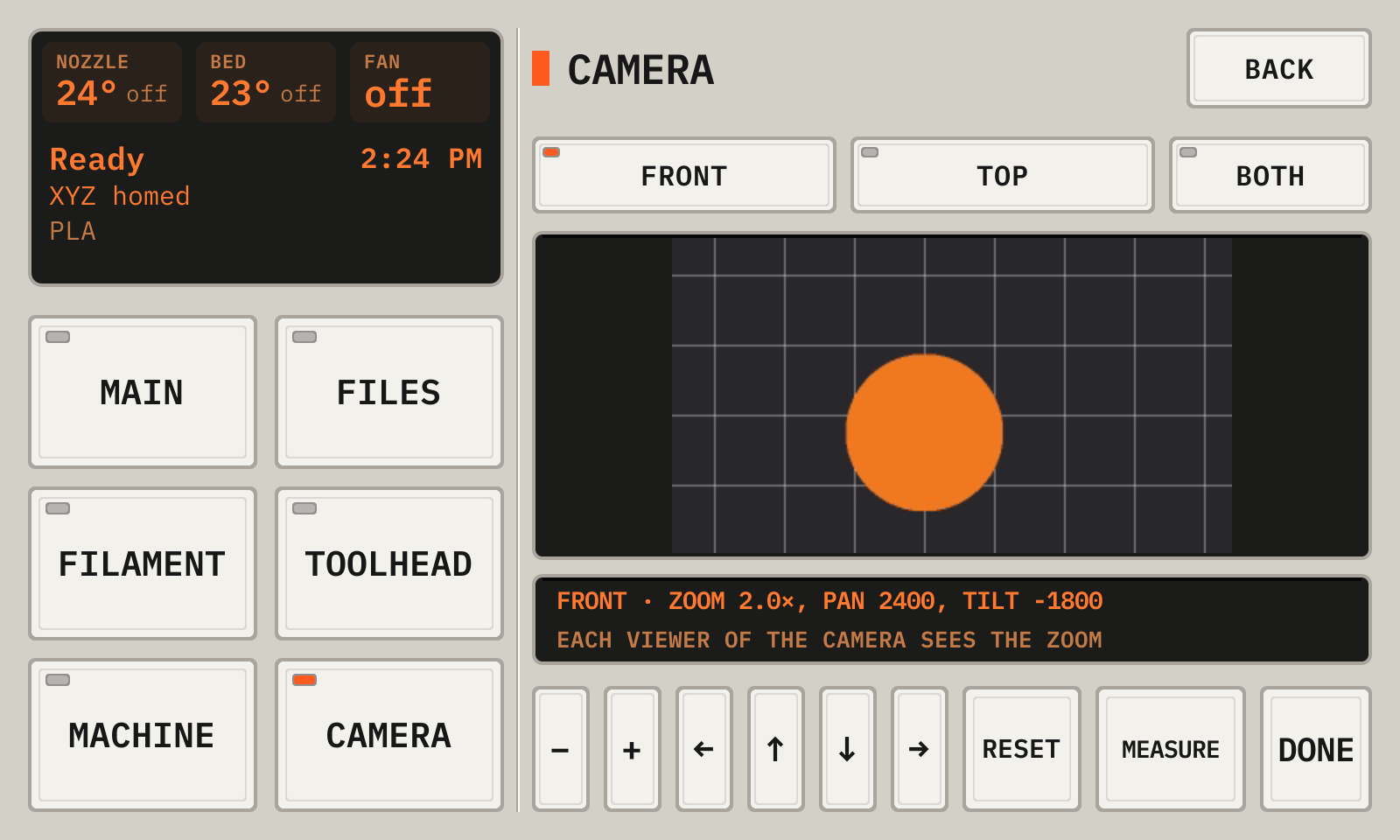
- 1Zoom outShows more of the printer.
- 2Zoom inShows a smaller part of the picture, larger.
- 3LeftThe arrows move the picture left, up, down and right.
- 4ResetBack to the whole picture.
- 5DoneShows the other camera keys again.
- 6MeasureMeasures the zoom of the camera, once. The camera zooms and moves for a few seconds.
A camera with a digital zoom crops its picture itself. The deck gets the picture with no extra work.
The camera sends one picture, so each viewer sees the zoom: the apps, the time lapse and the phone pictures.
Measure the zoom with the camera aimed at the bed and the printer still. The views and Zoom to the part then follow the zoom. Measure again after you move or turn the camera.
The deck keeps the zoom of each camera, and sets it each time the camera starts.
The Cameras page
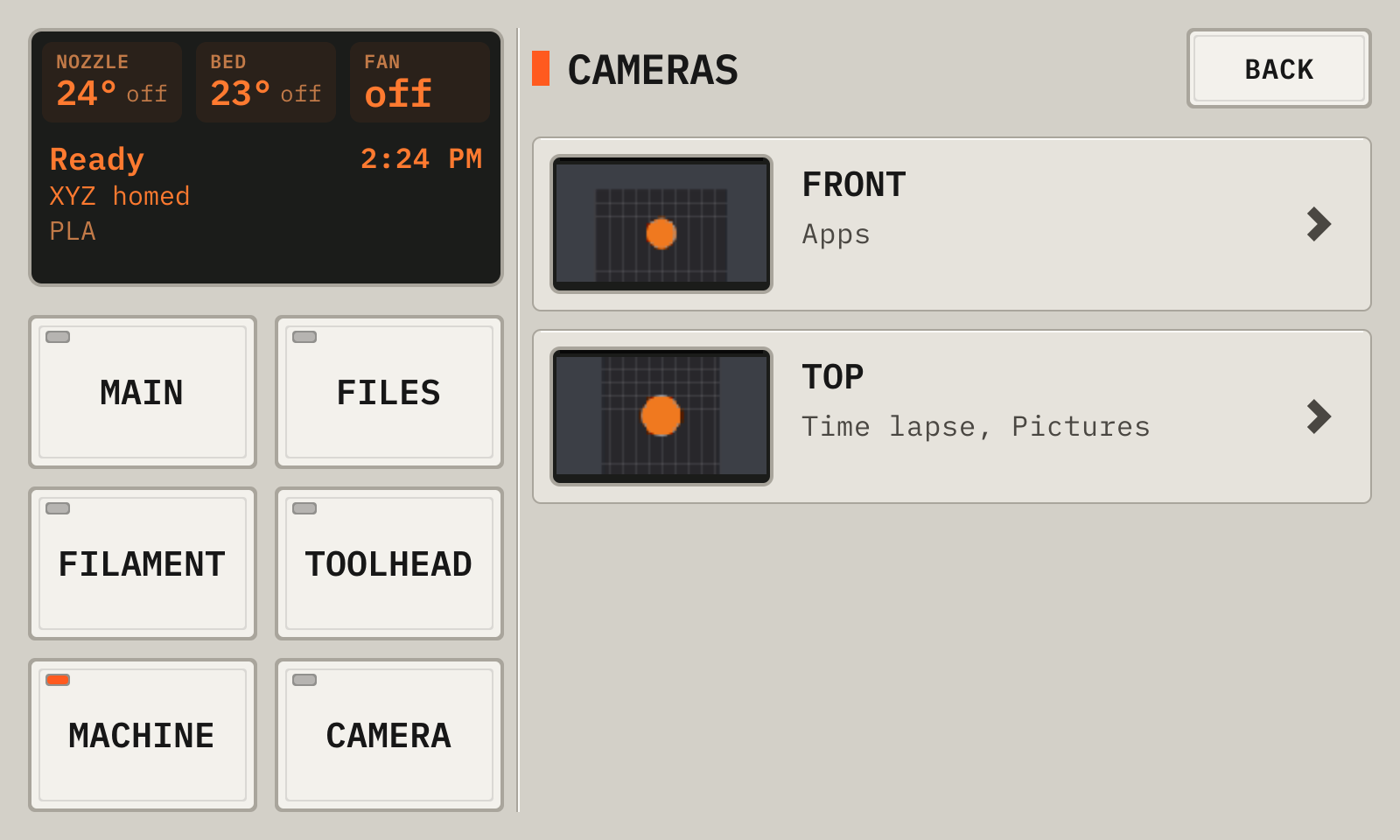
- 1FrontEach camera, with its uses. Tap a camera to change it.
The settings of one camera
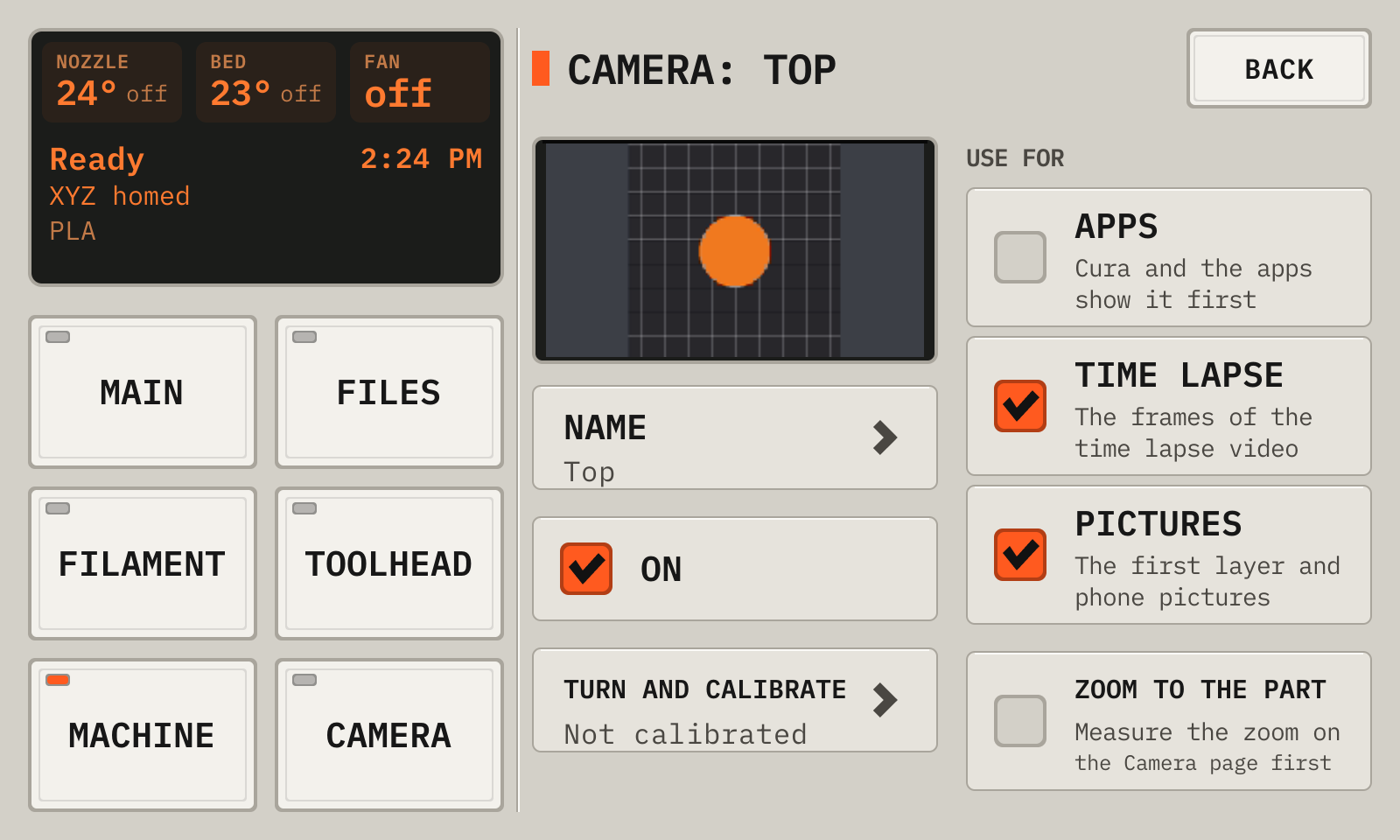
- 1NameType a name, such as Top.
- 2OnTurns the camera on or off. Its uses move to another camera.
- 3AppsCura and the apps show this camera first.
- 4Time lapseThe camera of the time lapse.
- 5PicturesThe first layer picture, and the pictures on the phone.
- 6Zoom to the partDuring a print, the camera zooms to the plate, and at the end it goes back. It needs Measure the zoom and a calibration. Only a camera with a zoom control has this row.
Each use is on one camera. To move a use, check it on the other camera.
Zoom to the part zooms the picture of each viewer. The time lapse then uses most of the picture of the camera.
Statistics
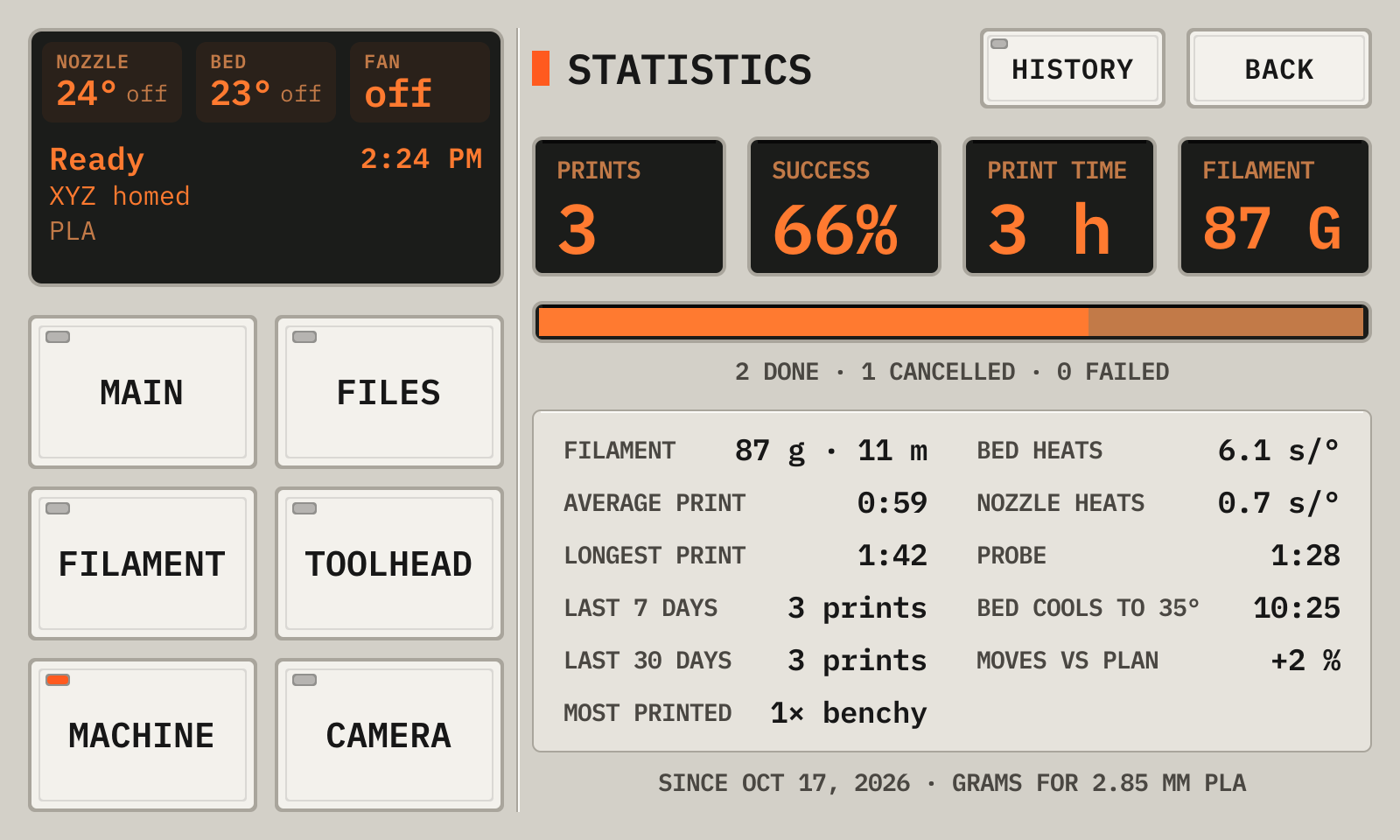
- 1TotalsThe prints, the success rate, the time and the filament.
- 2ResultsDone (amber), cancelled and failed (red).
- 3DetailsThe filament, the average and longest print, and the recent prints.
- 4HistoryEach print with its result. Tap a print to see it or print it again.
A print of the history
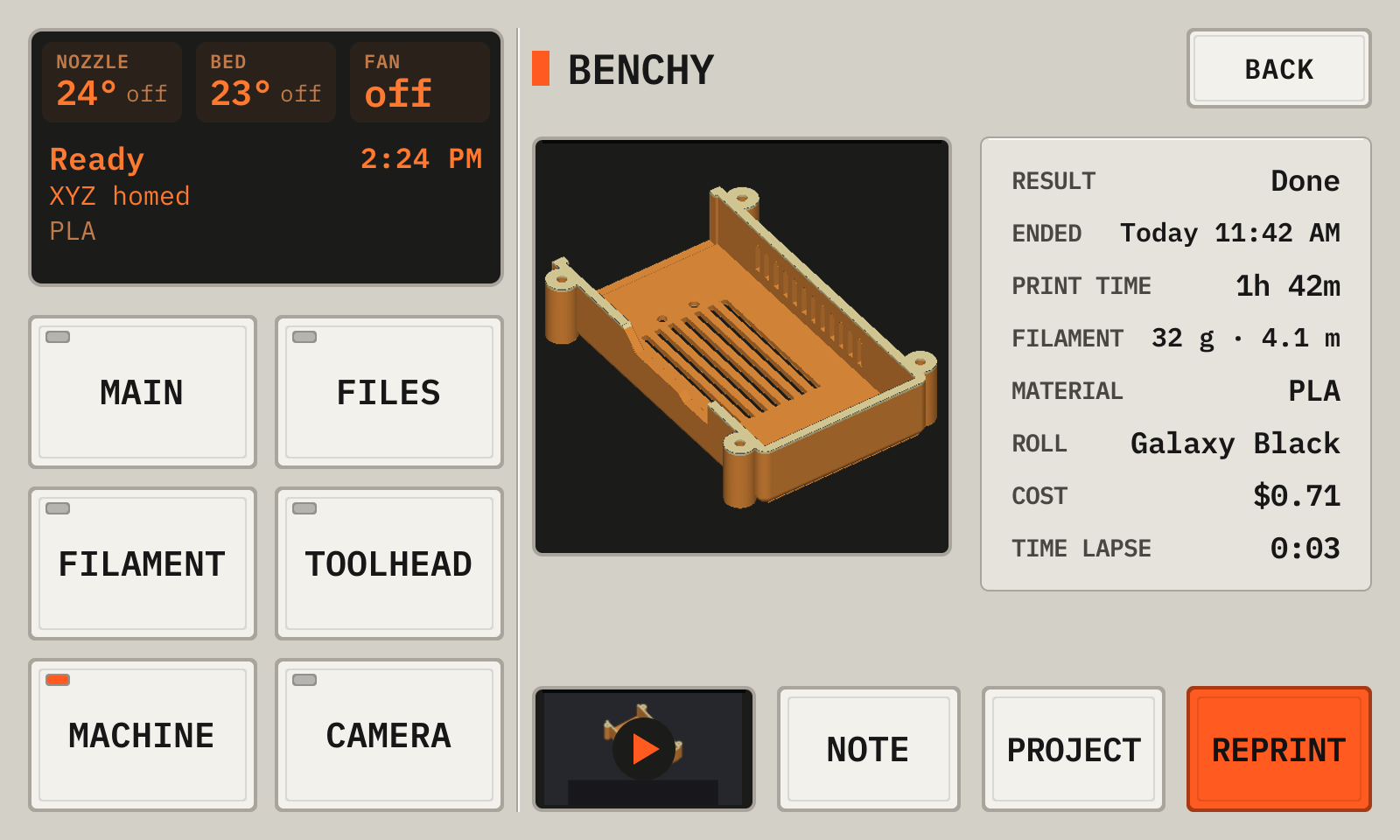
- 1ModelThe model of the print.
- 2DetailsThe result, the time, the filament and the time lapse video.
- 3StillThe last frame of the time lapse video.
- 4PlayOpens the player.
- 5ReprintPrints the file again.
The deck keeps the last 3 videos. The record of an older print shows Removed.
The console
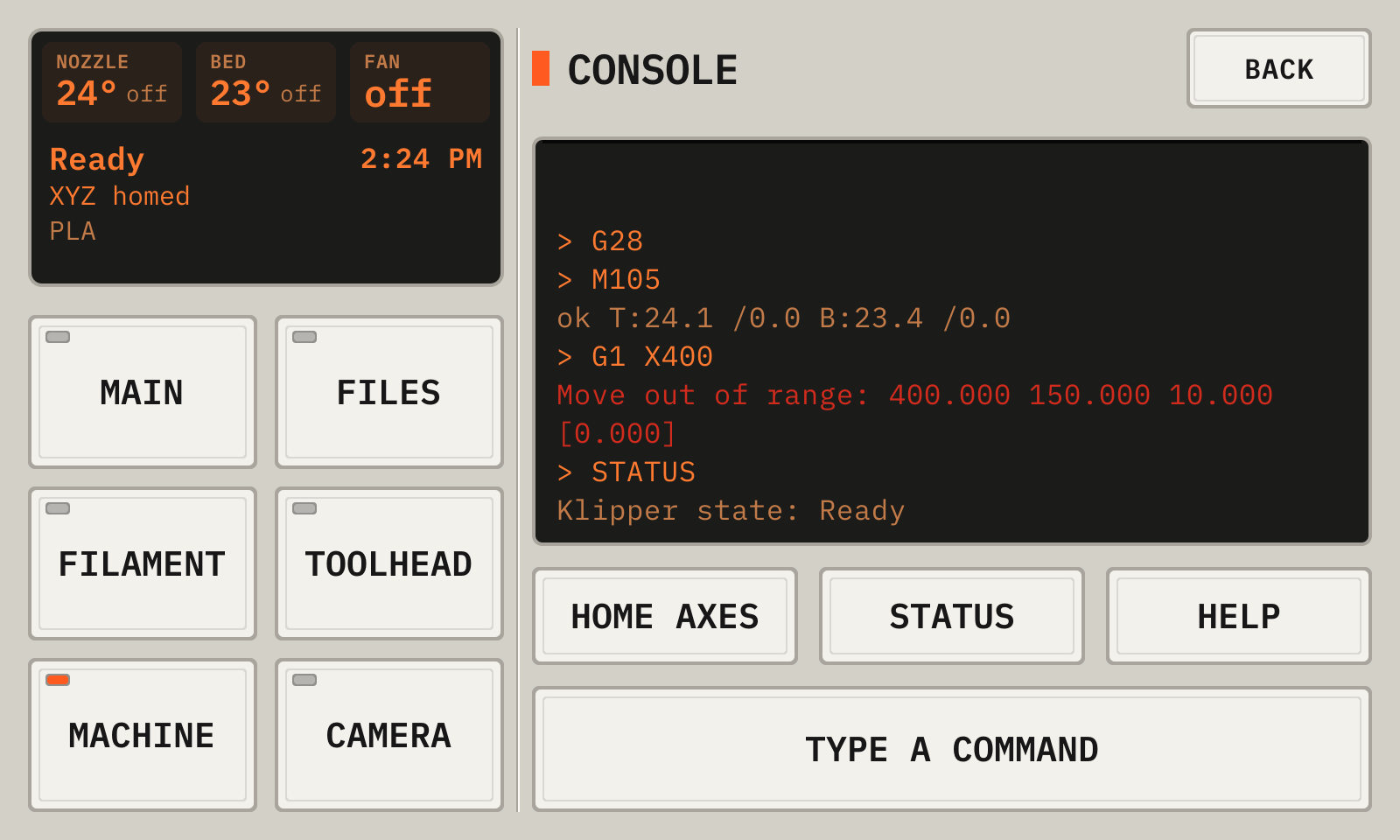
- 1RepliesYour commands, the replies, and errors in red.
- 2Type a commandOpens the keyboard.
- 3Quick keysHome (G28), Status (STATUS) and Help (HELP).
The System monitor
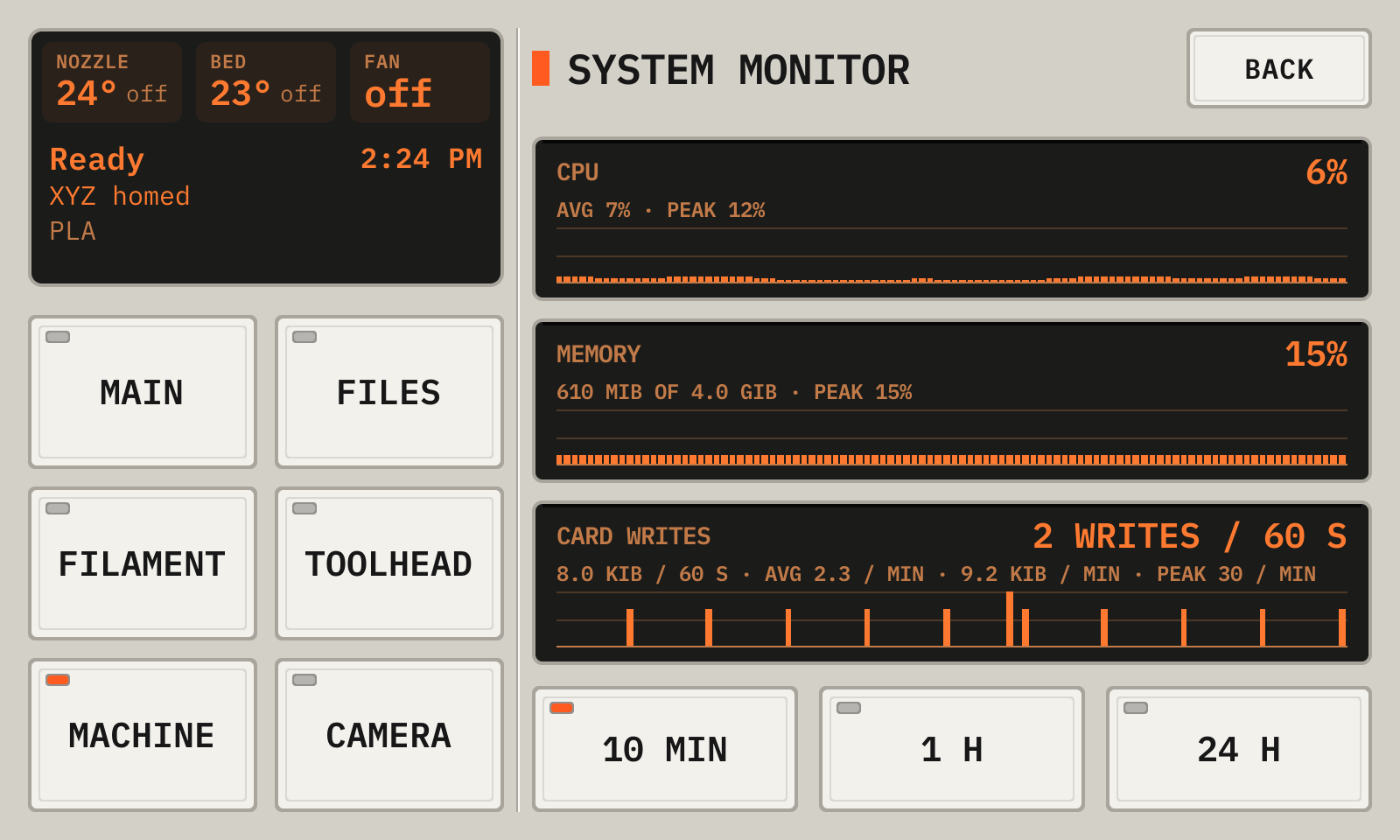
- 1CPUThe CPU use.
- 2MemoryThe memory in use.
- 3WritesThe SD card writes a minute.
- 41 h10 minutes, 1 hour or 24 hours.
The samples stay in memory. A restart clears them.
19Update the Printdeck
The deck checks for a new version once a day. Machine then shows Software update in orange.
The deck installs only a signed version. If the new system fails to start, the deck goes back to the old one.
- Open Machine, then Software update.
- Read the notes of the new version, then tap Install.
- Wait for the download. With no print, the deck restarts into the new version.
- During a print, the deck installs the update and the print continues. Machine shows Update ready. The deck restarts into the new version after the print, when the printer is idle and the bed is cool.
Software update
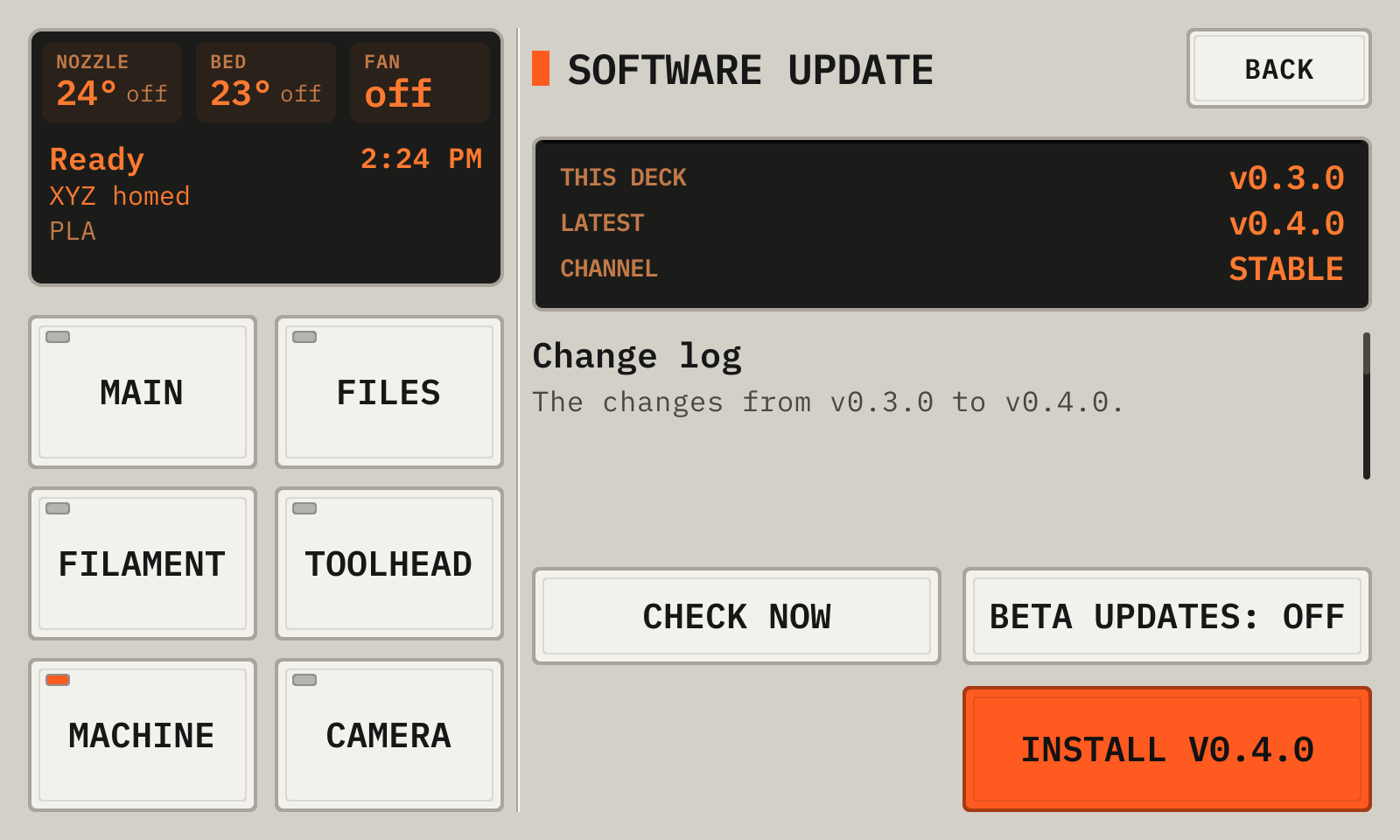
- 1VersionsThis version and the newest version.
- 2NotesWhat the new version changes.
- 3InstallInstalls the new version, after a question. With no print, the deck restarts. During a print, the deck restarts after the print.
- 4Check nowChecks for a new version now.
- 5Beta updatesOn: the deck also gets beta versions.
An update installed during a print
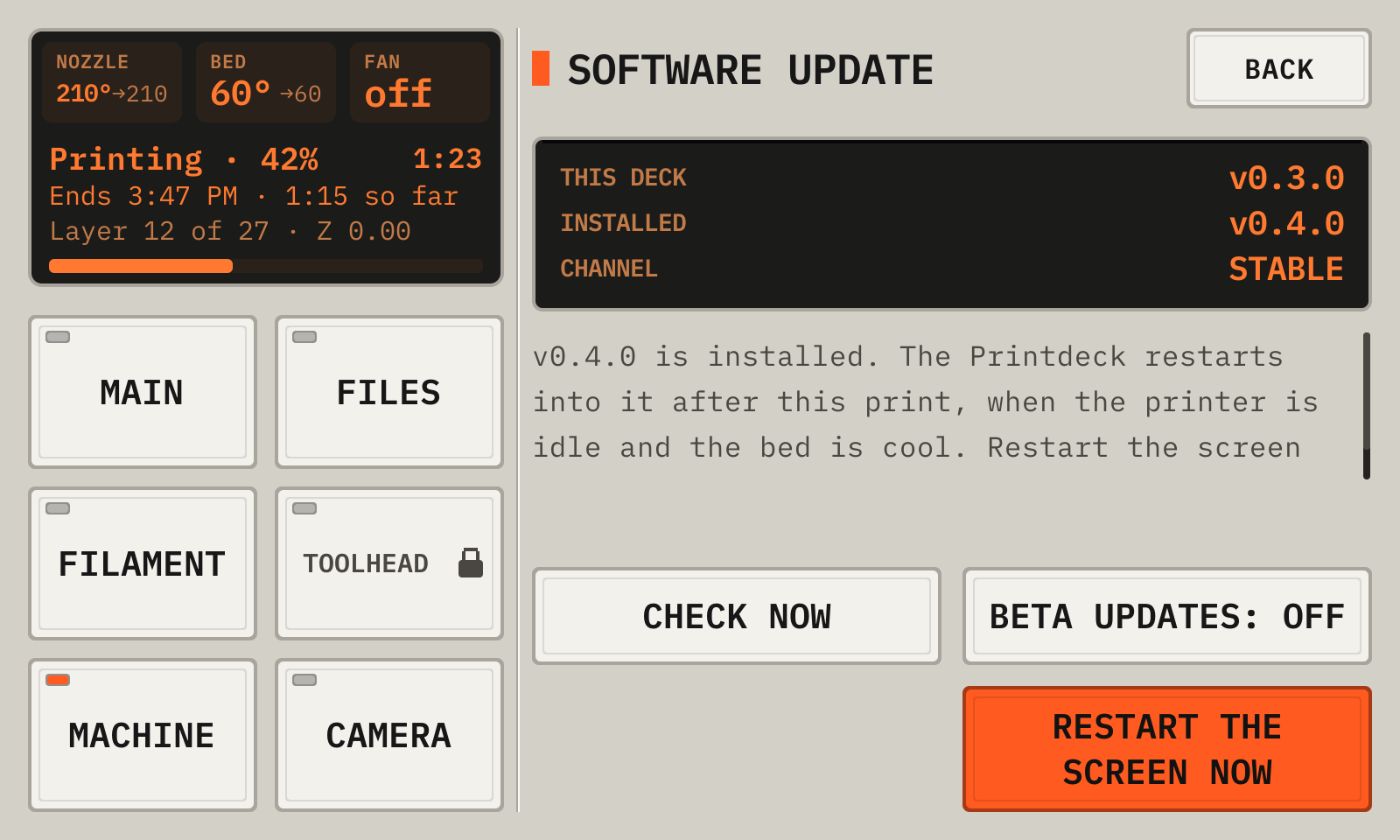
- 1VersionsThis version, and the installed version that waits for the restart.
- 2NotesThe deck restarts into the update after the print, when the printer is idle and the bed is cool.
- 3Restart the screen nowRuns the screen of the update now, after a question. The screen is dark for a few seconds. The print keeps running.
Restart the screen now shows only when the new screen works with the running Klipper. The time lapse and the share link of the print continue.
With no print, the key is Restart now.
20Back up your data
A backup is one file with your rolls, history, settings, API keys, paired phones and Klipper config. Make a backup before you change the SD card.
Keep the backup password safe. Without it, no one can restore the backup.
The backup excludes the deck password and the Wi-Fi network.
- Open http://printdeck.local/system in a browser, and log in with the password of the deck.
- Under Backup, type a backup password of 8 characters or more, two times. To add the G-code files, select Include the G-code files.
- Click Download the backup. The browser saves a file with the name printdeck-backup-NAME-DATE.pdbk.
- To restore, open the same page when no print runs. Under Restore, type the backup password, choose the file, then click Restore.
- Klipper and the Printdeck restart. A wrong password or a damaged file changes no data.
21Try the deck with a simulated printer
The simulated printer heats, homes, probes and prints in real time, and no motor moves. Use it to learn the deck or to test a file.
Your printer.cfg stays as printer.cfg.real until you tap Real printer.
- Open Machine, then Maintenance, then Simulated printer. The setup screen also has this key.
- Tap the printer to simulate, then Simulate. Klipper restarts with the simulated printer.
- Print as on a real printer: send a file from the slicer, or tap Print a file.
- To stop the simulation, open Machine, then Maintenance, then Simulated printer. Tap Real printer, then Go back. Klipper restarts with your printer.cfg.
A simulated printer in use
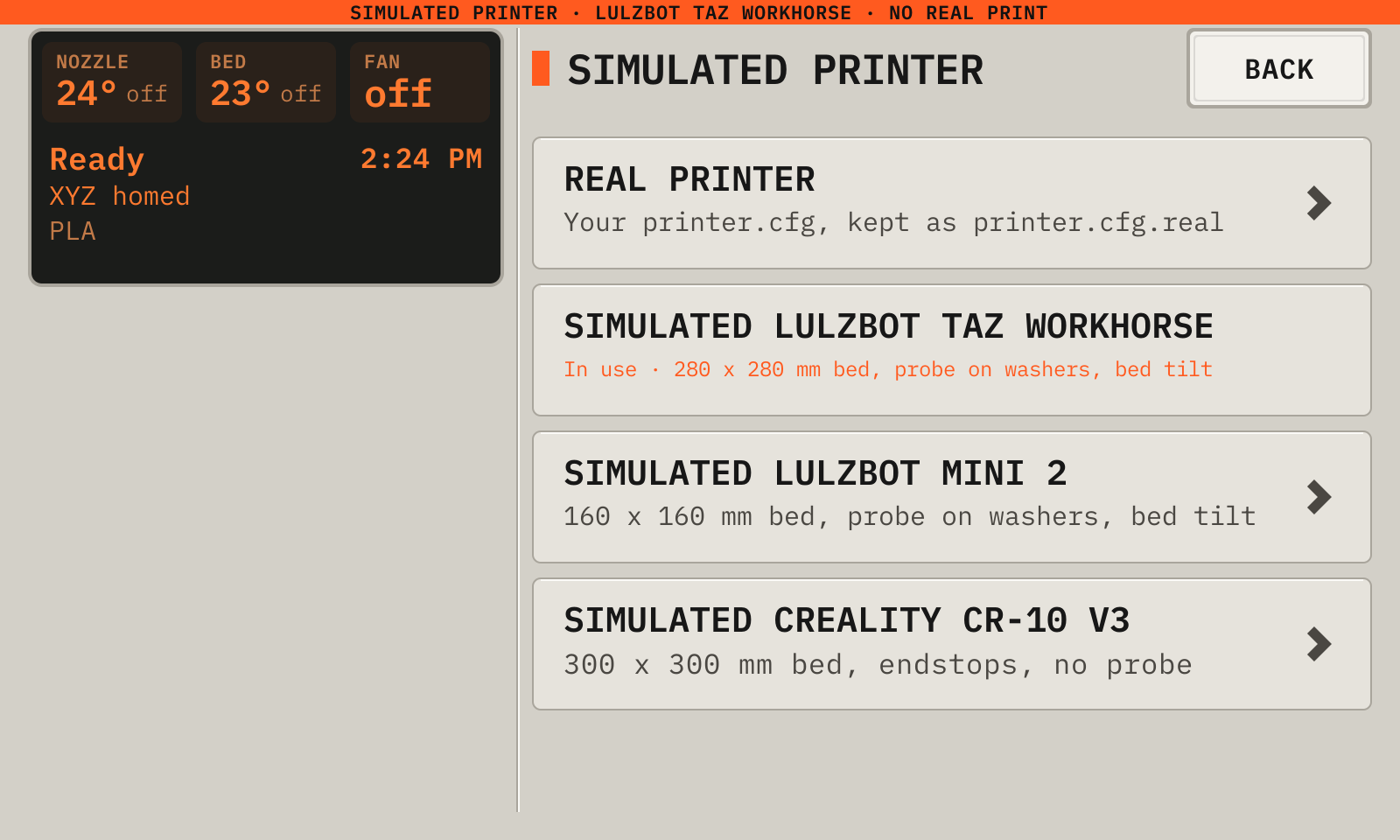
- 1SimulatedAn orange band shows a simulated printer.
- 2Real printerPuts your printer.cfg back and restarts Klipper.
- 3Simulated LulzBot TAZ WorkhorseA probe on four washers, and bed tilt. Here it is in use.
- 4Simulated LulzBot Mini 2A probe on four washers, and bed tilt.
- 5Simulated Creality CR-10 V3Endstops on each axis, and no probe.
The deck changes the printer only when no print runs.
From the manual for a wide display. The deck draws every picture.