The deck UI · wide
Change the filament
14Change the filament
Set the loaded filament here, so Preheat uses its temperatures. The deck keeps a list of your rolls. Each print subtracts its filament from the roll in the printer.
- Open Filament, then tap Change filament.
- Tap the roll that goes in, or tap New roll and weigh it. The nozzle heats for its material.
- Tap Unload, and hold the filament lightly while it comes out.
- Push the new filament into the extruder until it stops, then tap Load.
- Check that clean plastic of the new color comes out, then tap Done.
The Filament page
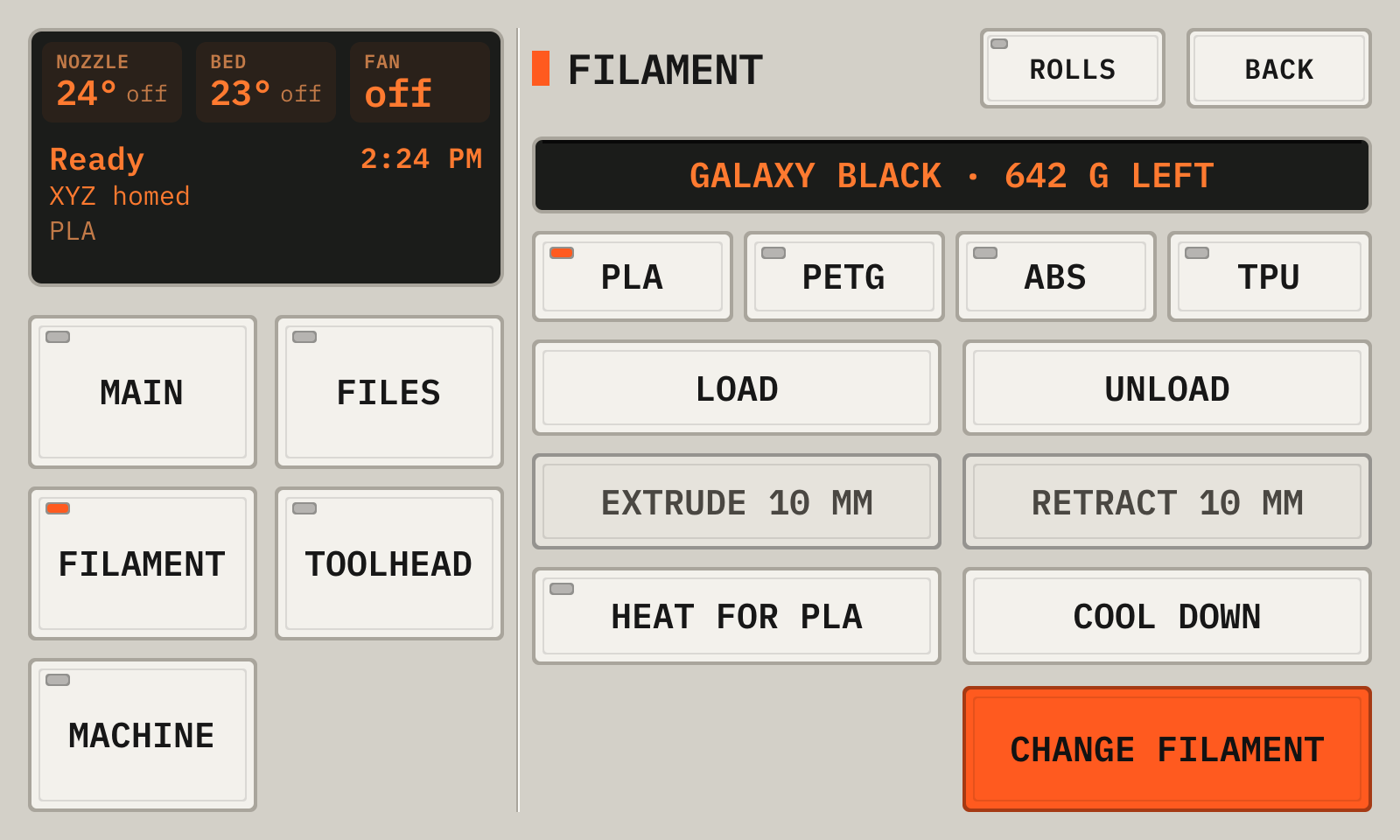
- 1RollsOpens the list of your rolls.
- 2LoadedThe roll or the material in the printer.
- 3MaterialTap the material in the printer.
- 4Change filamentThe guided change: choose, heat, unload, insert, load, check.
- 5Load, UnloadOnly the load, or only the unload.
- 6Extrude, RetractPushes or pulls 10 mm. The nozzle must be at 170° or more.
- 7Heat, Cool downHeats the nozzle, or turns the heaters off.
The guided change, step 1
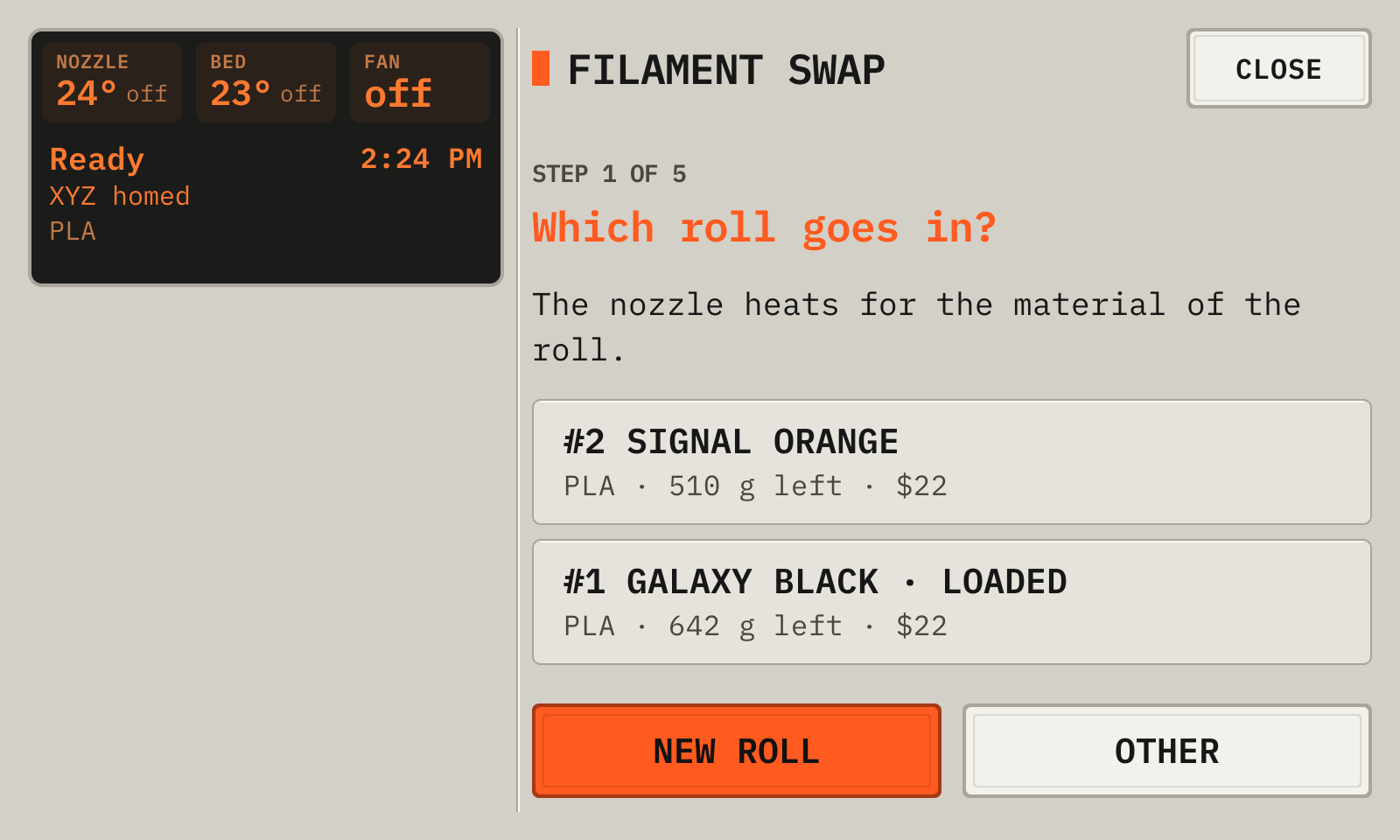
- 1StepThe step now.
- 2RollsTap the roll that goes in.
- 3New rollAdds a roll and weighs it.
- 4OtherA filament with no roll.
- 5CloseStops the change and turns off the nozzle.
A new roll
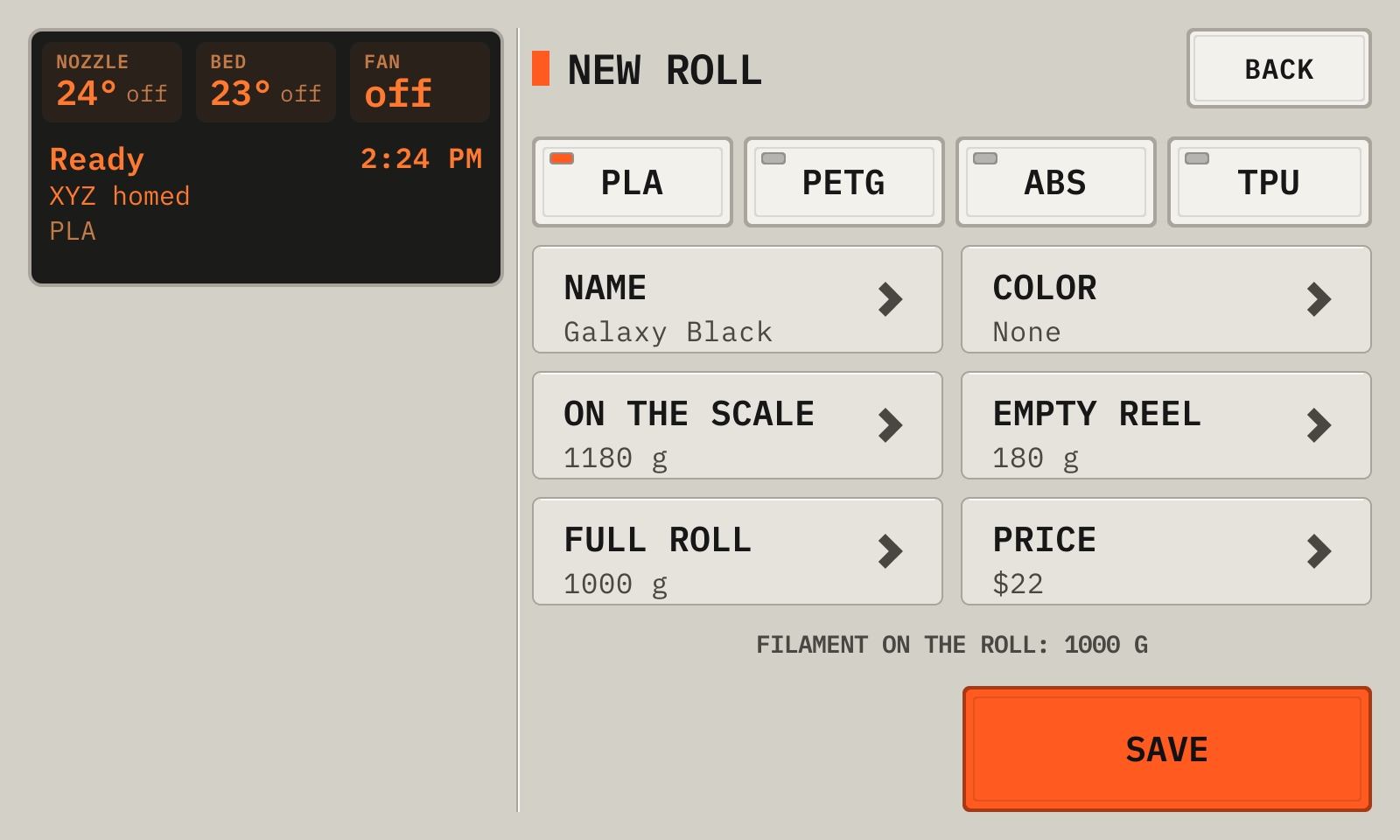
- 1MaterialThe material of the roll.
- 2NameFor example the color and the brand.
- 3On the scaleThe weight of the roll with its reel.
- 4Empty reelThe weight of an empty reel of the same brand.
- 5PriceThe roll price, for the cost of each print.
- 6SaveAdds the roll as the loaded roll.
The rolls
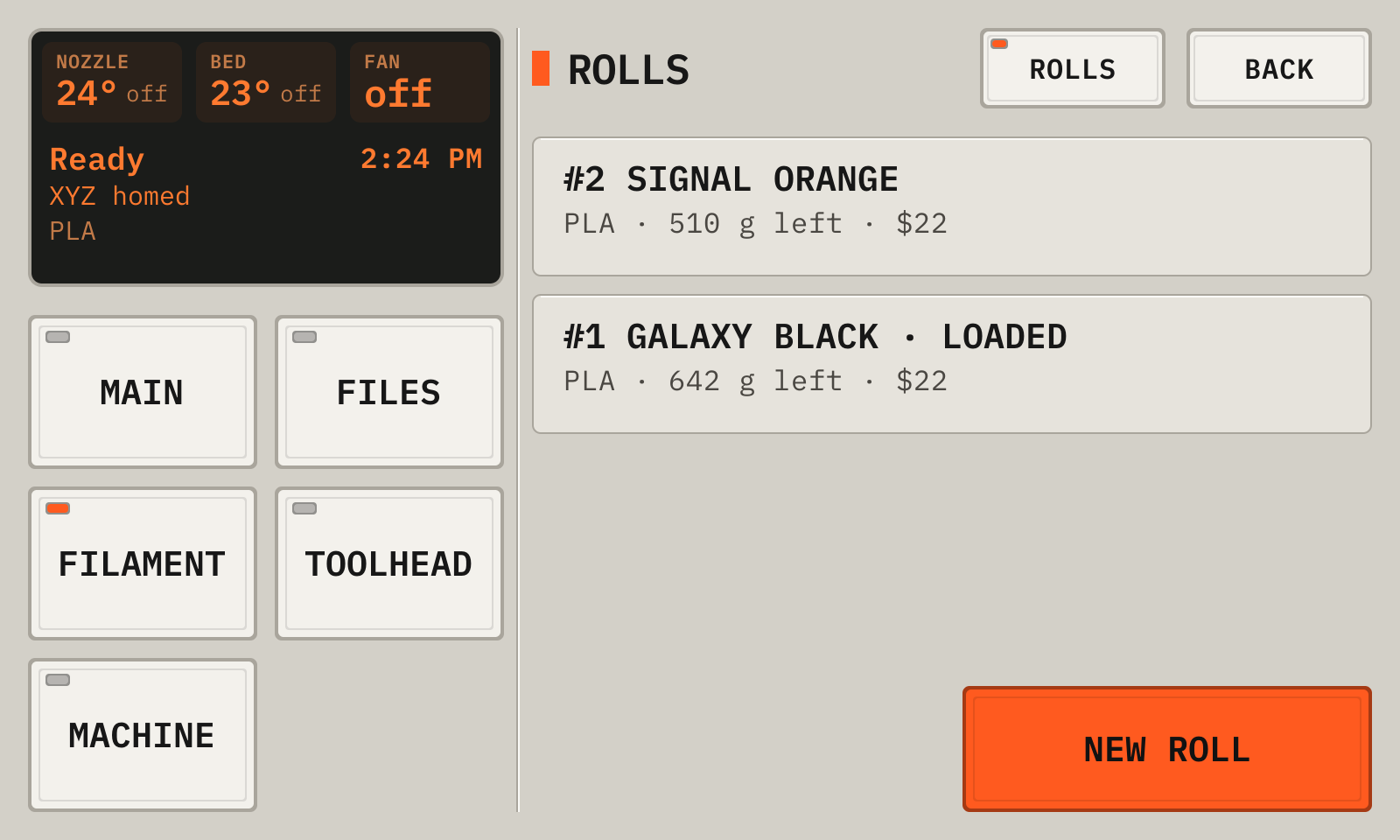
- 1New rollAdds a roll with no filament change.
One roll
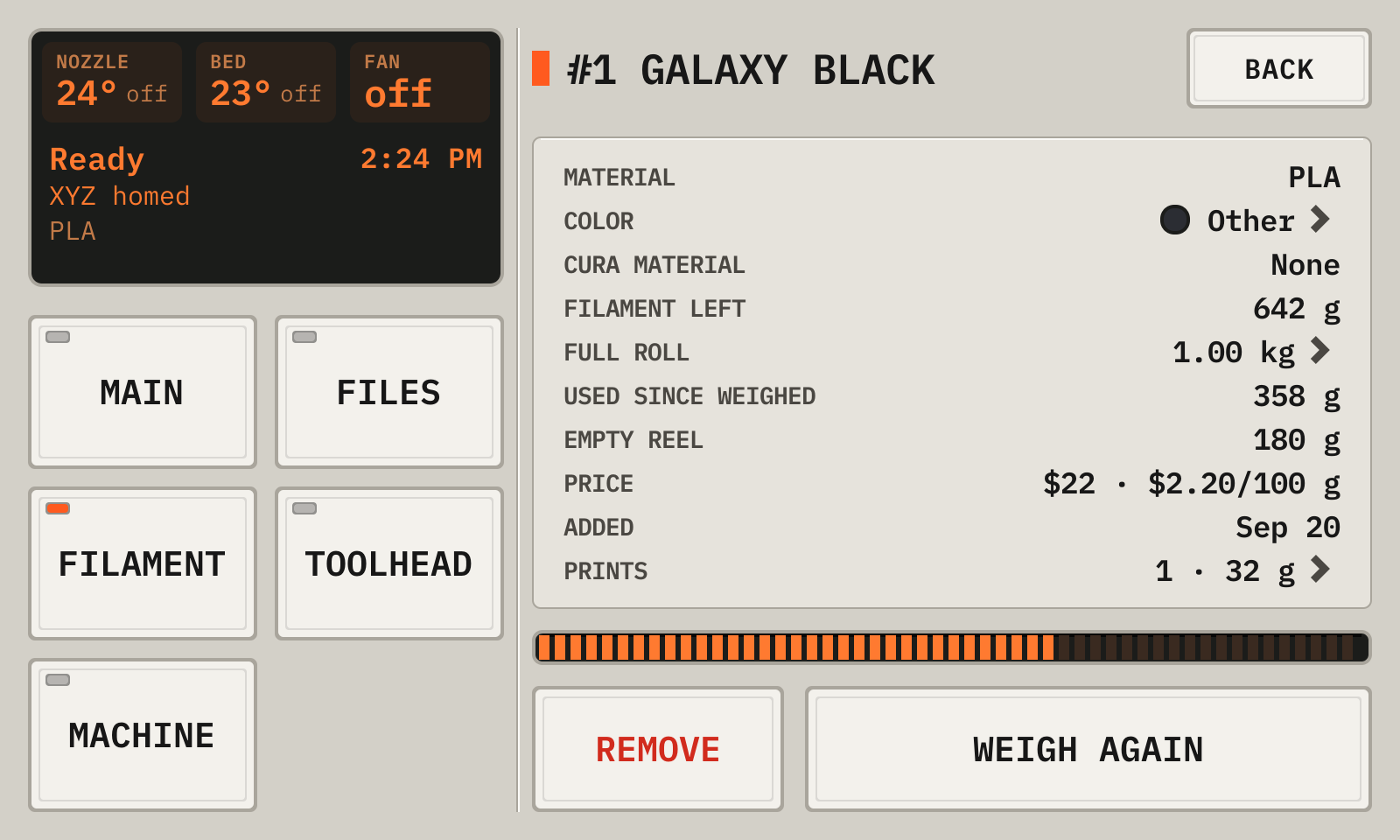
- 1DetailsThe filament left, the filament used, and the price.
- 2ColorTap it to choose a color. The print screen and Cura show it.
- 3Full rollThe filament of a full roll: 1 kg by default. Tap it to change it.
- 4LeftThe part of a full roll that is left.
- 5PrintsTap it for the prints that used the roll.
- 6Weigh againSets the filament from a new weight.
- 7RemoveRemoves an empty roll from the list.
Each roll has a number, for example #3. For QR code labels, open printdeck.local/rolls/labels and print the sheet on 2 inch round labels (Avery 22807). A phone camera on a label opens the page of the roll. Load there opens the filament change on the deck.
The color of a roll
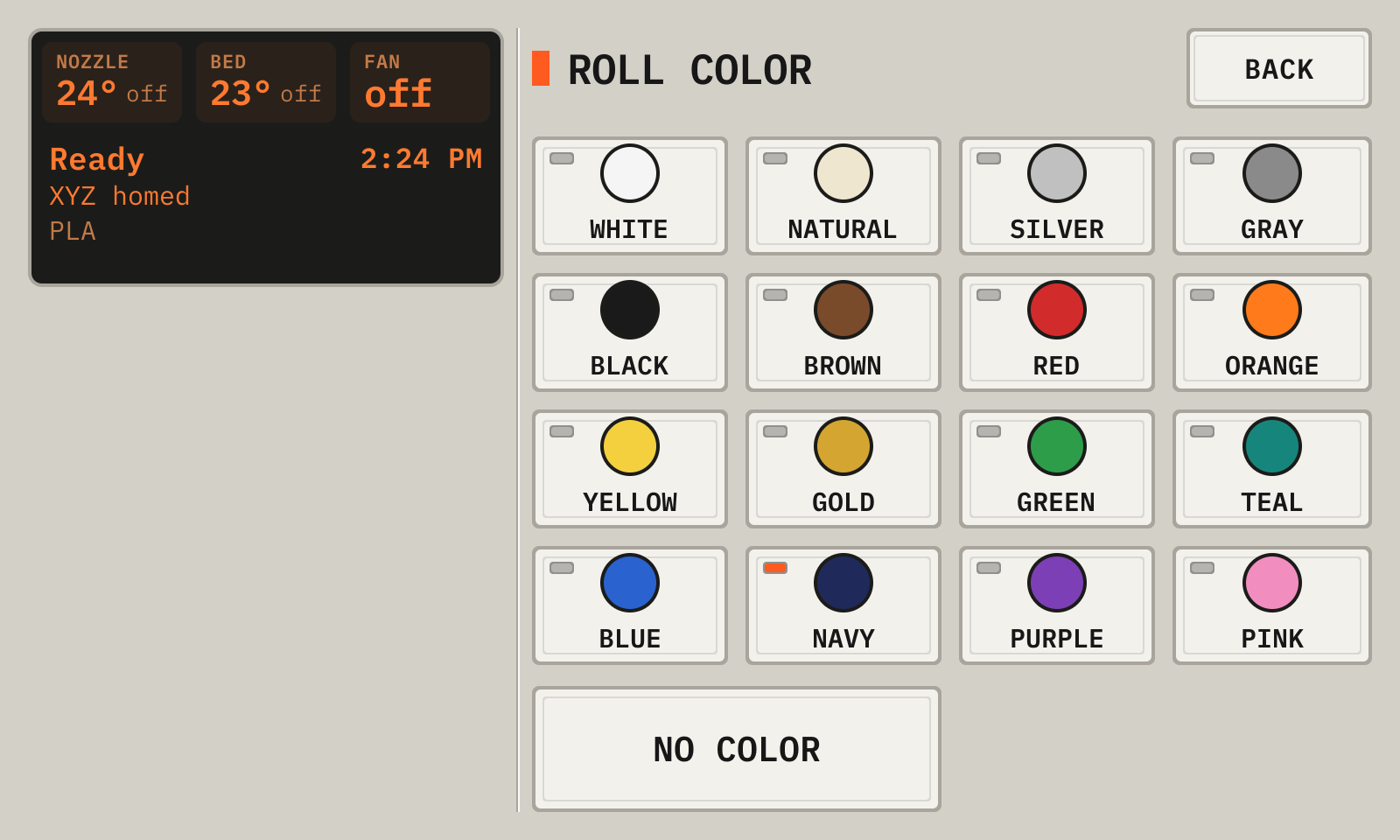
- 1ColorsTap a color.
- 2No colorRemoves the color.
Tap a color to set it. The Cura plugin gives the roll material in Cura the same color.
From the manual for a wide display. The deck draws every picture.