The deck UI · wide
Meet your Printdeck
04The deck
The deck shows the idle screen when no print runs. A key with an LED is on while its LED is lit. A key with no LED does an action.
The status panel and the key panel are at the left. The open page is at the right, with Back at the top and its actions at the bottom.
The idle screen
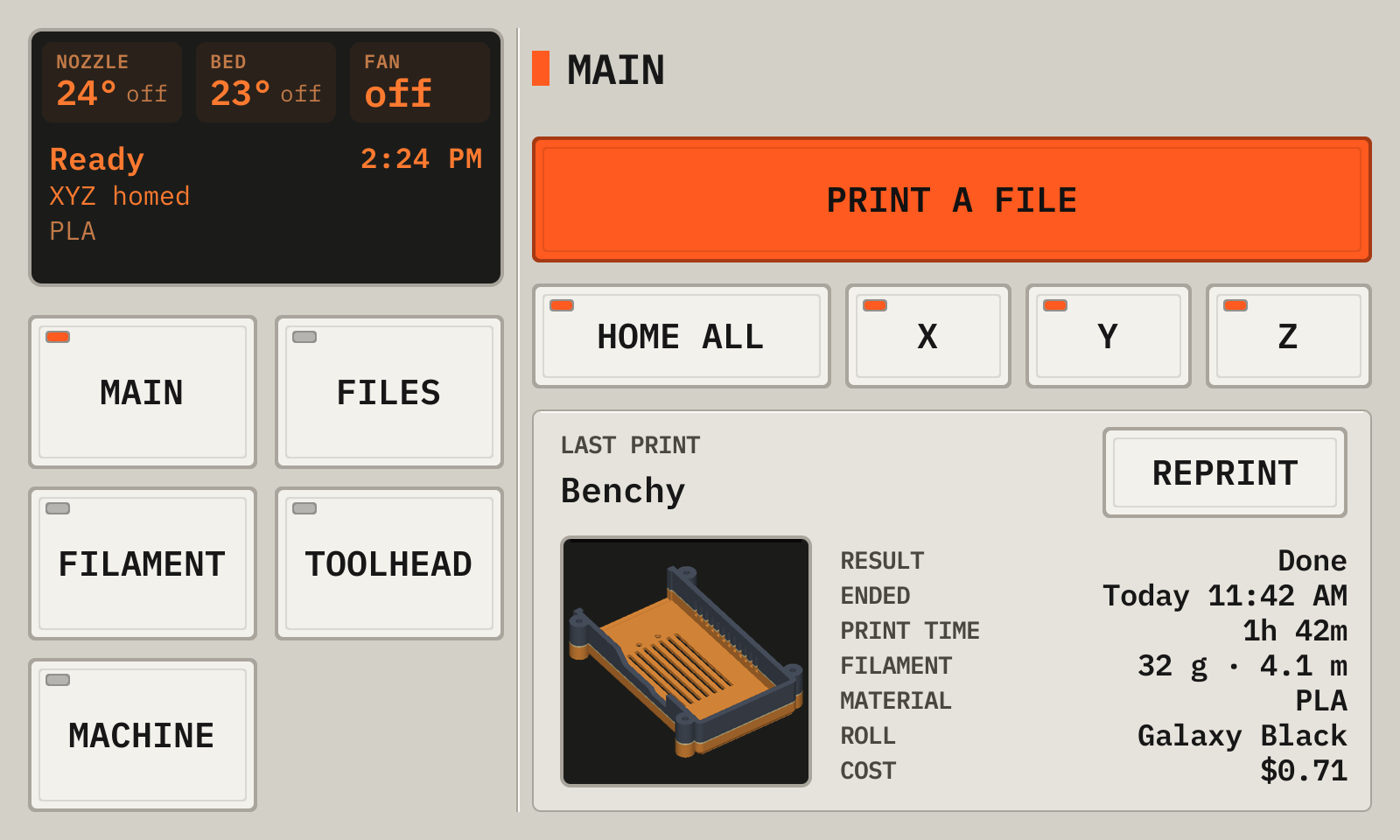
- 1NozzleThe nozzle temperature and its target. Tap it to set the temperature.
- 2BedThe same for the bed.
- 3FanThe part cooling fan. Its blades turn at its speed.
- 4StatusThe head position, the printer state, the loaded filament and the clock.
- 5Print a fileOpens the files. See Files.
- 6Home all, X, Y, ZHomes all axes, or one axis. A lit LED shows a homed axis.
- 7Last printThe last print and its cost. Reprint starts it again. Preheat and Cool down are on the Filament page.
- 8ModelTap it to open the print in the history.
- 9PagesThe lit LED shows the open page.
05The display of the printer
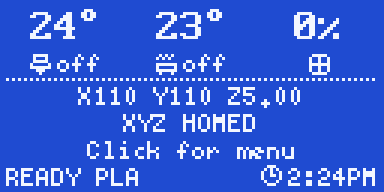
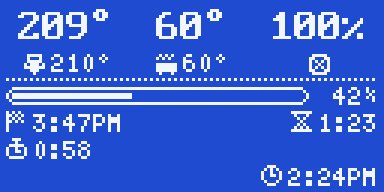
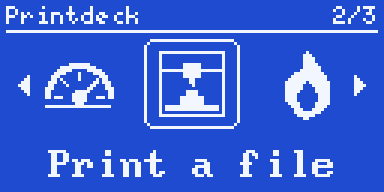
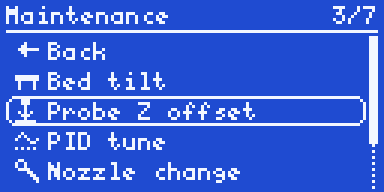
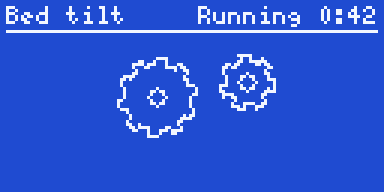
The deck draws the printer display. The display shows the same status as the deck.
Turn or click the knob to open the menu. The menu has the same pages and keys as the touch screen. A click taps the key. The top item goes back, and a long click also goes back. After 20 seconds with no turn, the display shows the status screen again.
06The deck in a browser
Open http://printdeck.local in a browser on the same network. Log in with the password of the deck. The browser shows the screens of the touch screen. Each browser has its own screens.
On a phone, tap Add to Home Screen. The deck then opens as an app.
The page http://printdeck.local/system shows the version, the logs and the API key for slicers. It also installs an update file, and makes a backup. See Back up your data.
From the manual for a wide display. The deck draws every picture.