iOS features
This page shows the parts of iOS that a ztk app reaches: the native views of UIKit, the renderer, the life of the app, the files of the app, and Info.plist.
Native views of UIKit
The classes of ztk::ios make the real views of UIKit from a script: a navigation stack with a navigation bar and a back button, screens, labels, buttons, switches, text fields, and stacks. They follow the dark mode, Dynamic Type, and the safe areas with no script, and VoiceOver reads them. The namespace exists only in an app on iOS, so test it first:
if {[namespace exists ztk::ios]} {
    puts "the views of UIKit"
}
ztk::ios has each class, with pictures.
Photos from the library
ztk::ios::photos shows the photo picker of the system. The app needs no permission and no key in its Info.plist, because the picker shows the library in a process of iOS and the app gets only the photos and the videos that the user picks. They come as files in the folder ztk-photos of the app data:
ztk::ios::photos -limit 4 -command {apply {{files} {
    foreach f $files { image create photo -file $f }
}}}
A list with search and reorder
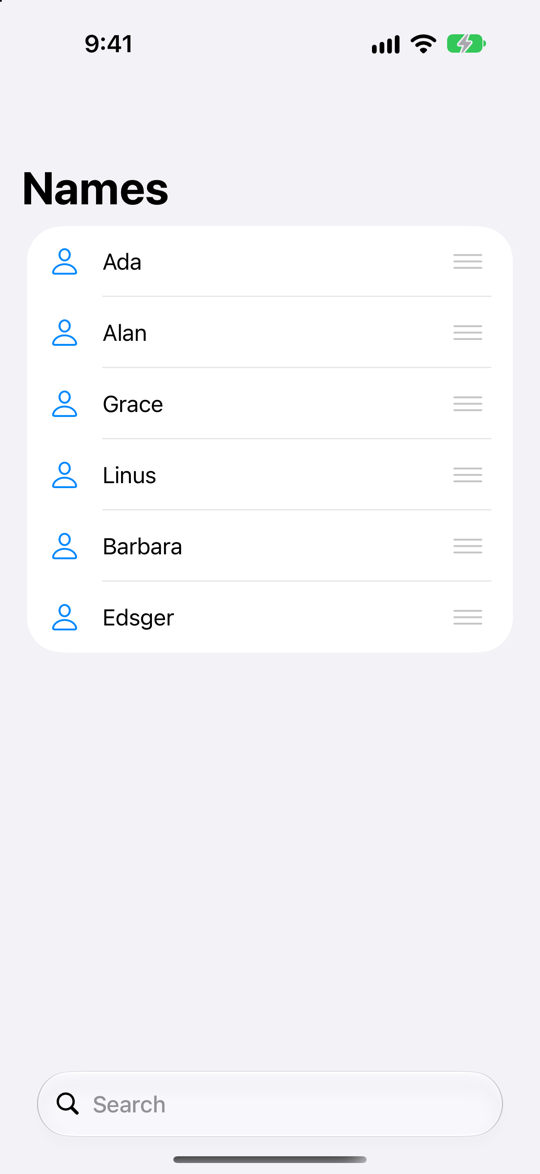
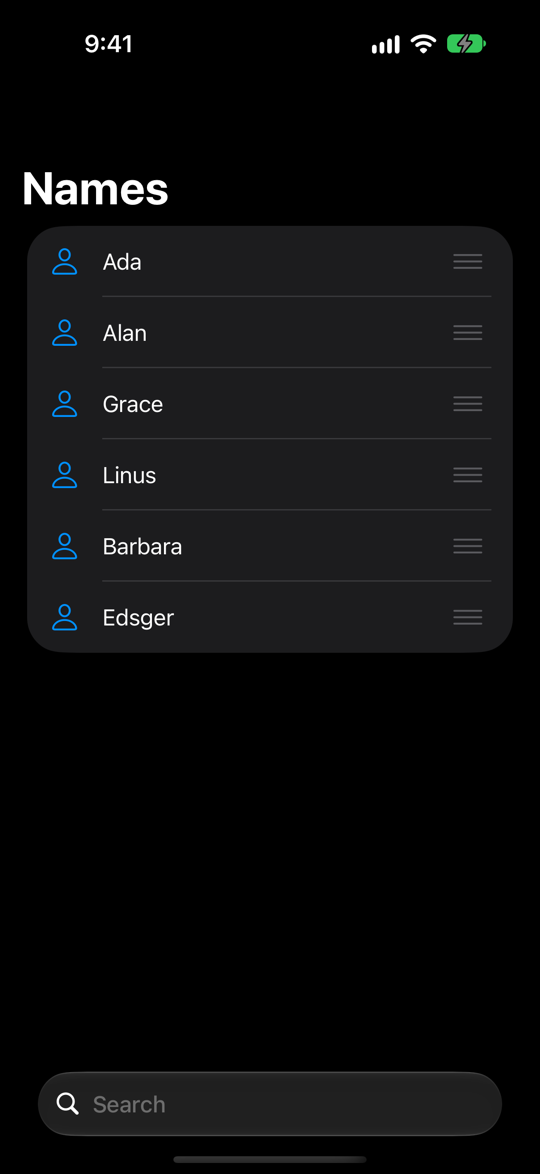
A list screen with -search 1 has a search field, and with -editing 1 a handle on each row to drag it. The script filters its rows in the method search, and moves a row in its data in the method move:
| Light | Dark |
|---|---|
 |
 |
oo::class create Names {
    superclass ztk::ios::ListScreen
    variable all shown
    constructor {} {
        set all {Ada Alan Grace Linus}
        set shown $all
        next -title Names -search 1 -editing 1
    }
    method rows {section} { llength $shown }
    method cell {section row cell} { $cell configure -text [lindex $shown $row] }
    method search {text} {
        set shown [lsearch -all -inline -nocase -glob $all *$text*]
        my reload
    }
    method movable {section row} { expr {[llength $shown] == [llength $all]} }
    method move {fromSection fromRow toSection toRow} {
        set name [lindex $all $fromRow]
        set all [linsert [lreplace $all $fromRow $fromRow] $toRow $name]
        set shown $all
    }
}
ztk::ios::app root [ztk::ios::NavigationStack new [Names new]]
The pictures show examples/ios-names.tcl. On iOS 27 the system puts the search field at the bottom of the screen.
The dialogs of Tk
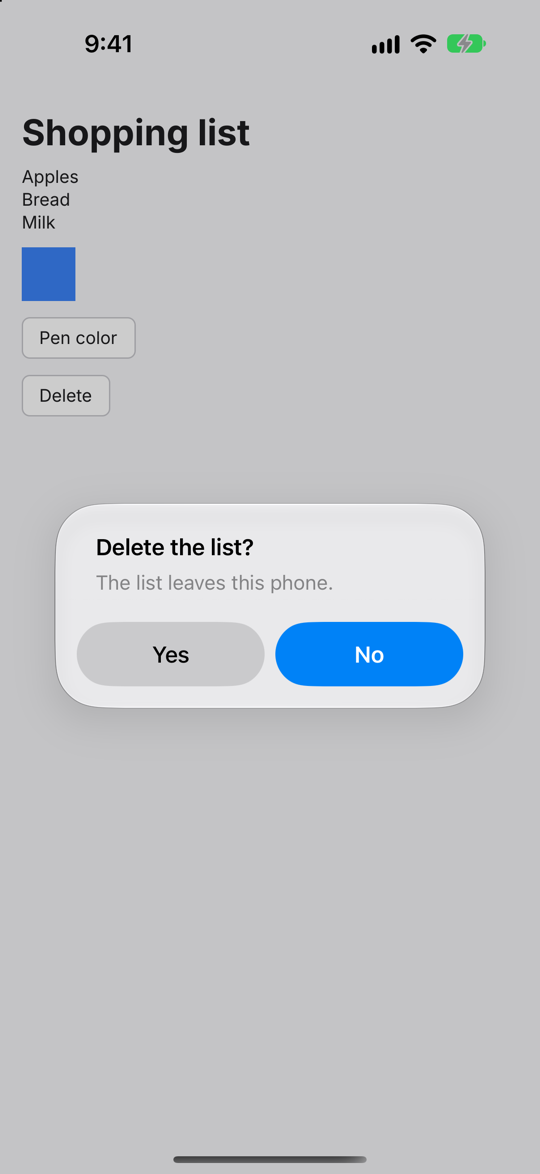
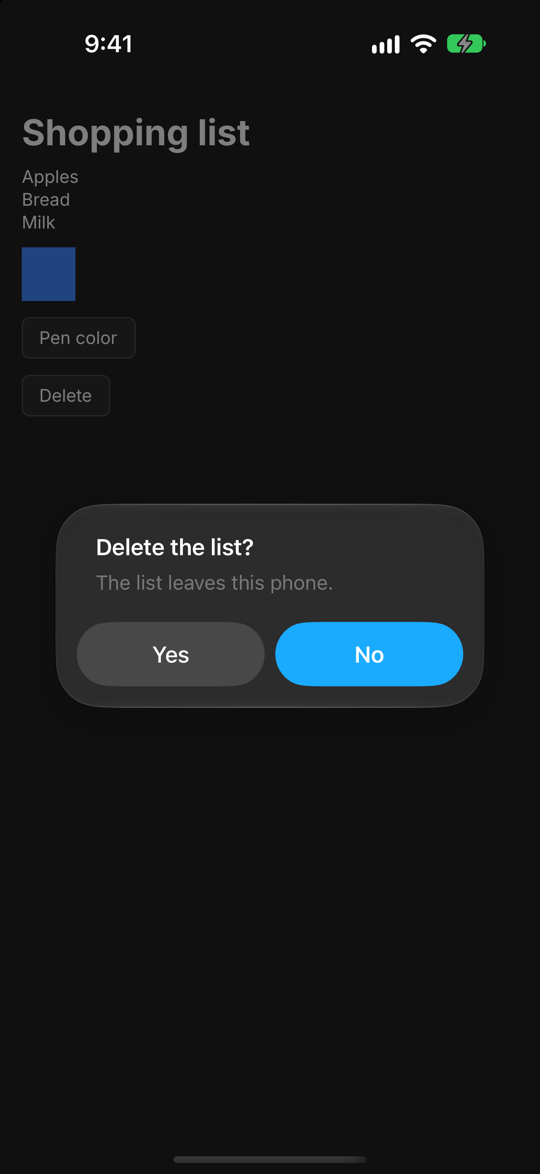
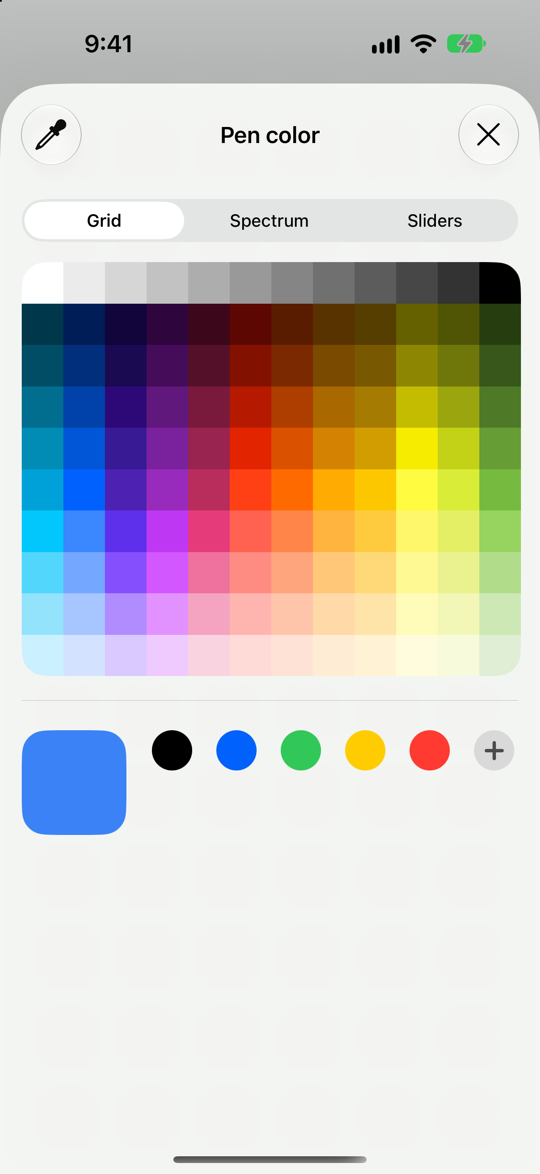
tk_messageBox shows an alert of iOS, and tk_chooseColor shows the color picker of iOS. The script waits for the answer, as on a desktop, so a Tk script needs no change. -message is the title of the alert and -detail its text, and the button of -default is in bold. The color picker has no Cancel: its close button and a swipe down give the color that it shows.
| Light | Dark | |
|---|---|---|
tk_messageBox |
 |
 |
tk_chooseColor |
 |
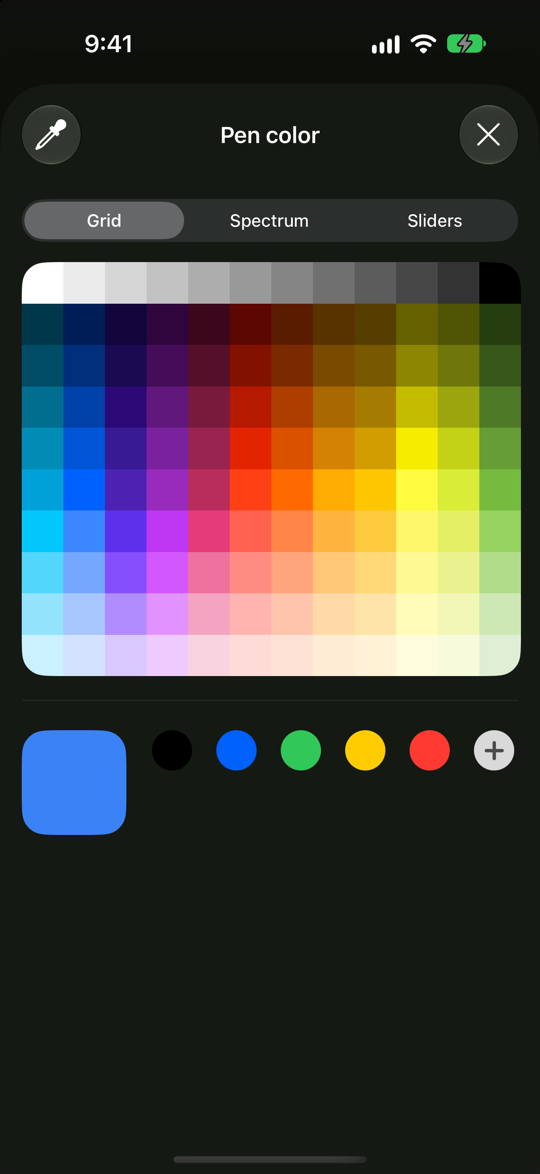 |
The pictures show examples/ios-dialogs.tcl:
set answer [tk_messageBox -type yesno -icon question -default no \
    -message "Delete the list?" -detail "The list leaves this phone."]
set color [tk_chooseColor -initialcolor #3b82f6 -title "Pen color"]
The file dialogs and tk fontchooser are still the dialogs that ztk draws.
VoiceOver
VoiceOver reads the Tk widgets of an app, and a double tap does the action of a widget:
| Widget | VoiceOver reads | A double tap |
|---|---|---|
| A label | Its text | No action |
| A button | Its text, and "button" | Presses the button |
| A check button, a radio button | Its text, and its state | Changes the state |
| An entry, a spinbox, a combobox | Its text; the text of an entry with -show stays silent |
No action |
A widget with -state disabled |
It, and "dimmed" | No action |
VoiceOver goes through the widgets in the order of the widget tree, follows the keyboard focus of Tk, and reads the screen again after a change of the widgets. A button with an image and no text has no name for VoiceOver, so give it a -text. A native view has the full support of UIKit.
The renderer
Metal draws each frame into a CAMetalLayer. When Metal does not start, or a draw fails, the CPU renderer of ztk draws the frame. The output of the app gives the renderer, and the cause of the CPU path:
ztk: renderer metal
ztk: renderer cpu: ZTK_RENDERER is cpu
| Variable of the app | What it does |
|---|---|
ZTK_RENDERER |
auto (the default), cpu, or metal. With metal, the line of the CPU path is an error. |
ZTK_STATS=1 |
Writes the time of the draw for each 120 frames, such as ztk: frames: metal, 120 frames, draw 3.65 ms mean, 5.28 ms most. |
Give a variable with the prefix SIMCTL_CHILD_ or DEVICECTL_CHILD_ (See the output).
The life of the app
iOS can stop an app that is not in front. ztk sends <<AppBackground>>, <<AppForeground>>, <<LowMemory>>, and <<AppTerminate>> to .. Save the state of the app at <<AppBackground>>:
bind . <<AppBackground>> save_state
proc save_state {} {puts "save the state"}
The life of the app has each event and a full example.
Files
The app folder of iOS is read-only. At each start, the app copies the scripts and files of ztk bundle to Library/Application Support/app of the container of the app. That folder is:
- the folder of
tk appdata, - the root folder of the file commands,
- the folder of the main script.
The file commands reach no folder out of it. Save data in a file with a name of its own, because the next start copies the files of the app again.
Info.plist and permissions
ztk bundle writes an Info.plist with:
| Key | Value |
|---|---|
| The name, the identifier, the version | From -o or --name, --id, and --version. |
| The minimum iOS version | 18.0. |
| The devices | The iPhone and the iPad. |
| The orientations | All four, and full screen on an iPad. |
| The launch screen | An empty launch screen. |
| The icon | From --icon. |
--ios-plist FILE adds keys of the app from a plist in XML, such as the text that iOS shows when the app asks for a permission. A key that ztk bundle writes itself gives an error.
<?xml version="1.0" encoding="UTF-8"?>
<!DOCTYPE plist PUBLIC "-//Apple//DTD PLIST 1.0//EN" "http://www.apple.com/DTDs/PropertyList-1.0.dtd">
<plist version="1.0">
<dict>
    <key>NSCameraUsageDescription</key>
    <string>Scan the code of a plant.</string>
</dict>
</plist>
zig-out/bin/ztk bundle -o Plants.app --target aarch64-ios --ios-plist extra.plist main.tcl
The privacy manifest
Each app has a privacy manifest, PrivacyInfo.xcprivacy, which the App Store needs. The default manifest declares no tracking and no collected data, and one API with a reason: the file timestamps that the file commands read in the container of the app (reason C617.1). An app that collects data, or reads the files that the user picks, gives its own manifest with --ios-privacy FILE.
The games of the Toys page
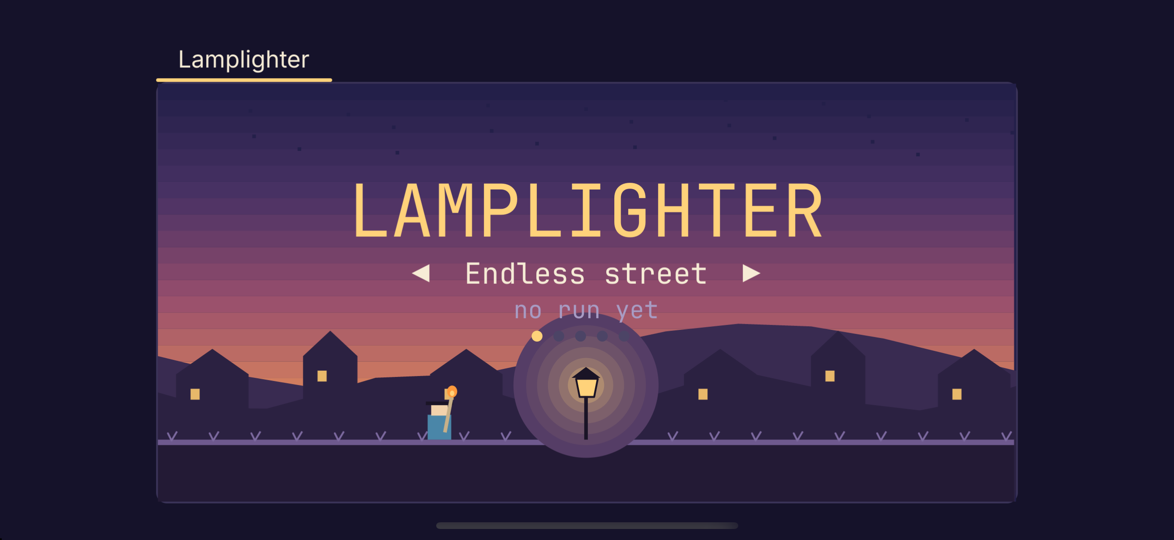
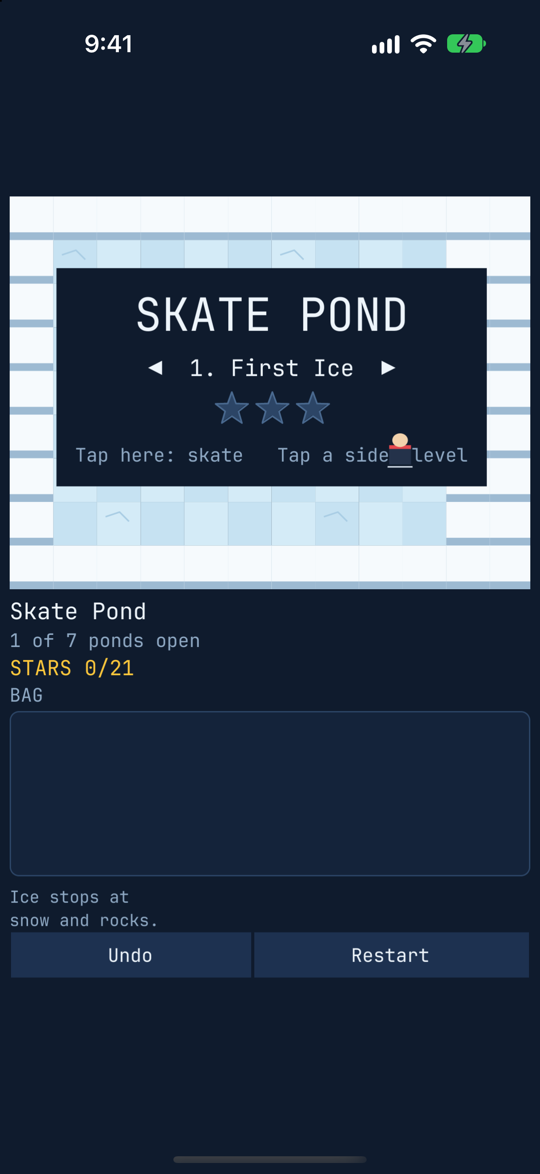
The three games of the Games page run on a phone through a host script (An example: the games):
ztk --ios docs/toys/native/lamplighter.tcl docs/toys/lamplighter.tcl \
    docs/toys/native/toyhost.tcl
The next page, Limits, lists what does not work on iOS.