Windows features
This page shows the parts of Windows that a ztk script reaches: the taskbar button, the notification area, the dialogs, drags with Explorer, the backdrop of a window, file types, and global shortcuts. Each part has a script that you can run with ztk.
The commands of this page exist on each platform, and they give an error where they have no effect. Test the platform first with ztk::has:
| Test | 1 on Windows when |
|---|---|
ztk::has taskbar |
ztk::taskbar reaches the taskbar button. |
ztk::has recent |
ztk::recent reaches the recent documents. |
ztk::has tray |
ztk::tray can show an icon in the notification area. |
ztk::has win |
The commands ztk::win::* work. |
ztk::has native-menus |
The menus are menus of Windows. |
The taskbar button
ztk::taskbar changes the taskbar button of the window .:
| Command | The taskbar button |
|---|---|
ztk::taskbar progress 0.4 |
A green bar under the icon. |
ztk::taskbar progress 0.4 -state paused |
A yellow bar. |
ztk::taskbar progress 0.4 -state error |
A red bar. |
ztk::taskbar progress indeterminate |
A bar that moves, with no value. |
ztk::taskbar progress none |
No bar. |
ztk::taskbar badge 3 |
A red disc with 3 over the icon. Above 99 it shows +. |
ztk::taskbar badge 0 |
No badge. |
ztk::taskbar attention |
Three flashes of the button. |
ztk::taskbar attention -critical |
Flashes until the window comes to the front. |
The jump list
A right click on the taskbar button opens the jump list. ztk::win::jumplist sets its tasks. A task starts this program again with its args:
if {[ztk::has win]} {
    ztk::win::jumplist {title "New window" args --new} \
        {title "Open recent" args --recent}
}
ztk::recent add PATH adds a file to the recent documents of Windows and to the part "Recent" of the same list, when the app opens files of that type (File types).
Buttons under the thumbnail
ztk::win::thumbbar puts up to 7 buttons under the thumbnail of the taskbar button, as a media player does:
image create photo play -width 16 -height 16
play put #2c7be5 -to 3 3 13 13
if {[ztk::has win]} {
    ztk::win::thumbbar . [list image play tooltip Play command {puts play}]
}
An icon in the notification area
ztk::tray puts an icon in the notification area of the taskbar:
image create photo dot -width 16 -height 16
dot put #2c7be5 -to 2 2 14 14
menu .traymenu -tearoff 0
.traymenu add command -label "Show" -command {wm deiconify .; raise .}
.traymenu add command -label "Quit" -command exit
if {[ztk::has tray]} {
    ztk::tray create -image dot -tooltip "Backup" -menu .traymenu \
        -command {if {"%a" eq "double"} {wm deiconify .; raise .}}
}
| Action | What happens |
|---|---|
| A click of the right button | The menu of -menu opens at the pointer. |
| A click of the left button | -command runs with %a as click. |
| A double click | -command runs with %a as double. |
The icon comes back when Explorer starts again. ztk::tray has each option.
The dialogs of Windows
The dialogs of Tk are the dialogs of Windows:
| Command | Dialog |
|---|---|
tk_getOpenFile, tk_chooseDirectory |
The open dialog of Windows. |
tk_getSaveFile |
The save dialog of Windows. |
tk_messageBox |
The message box of Windows. |
tk_chooseColor |
The color dialog of Windows. |
tk fontchooser show |
The font dialog of Windows. |
ttk::button .open -text "Open..." -command {
    set file [tk_getOpenFile -parent . -title "Open a note" \
        -filetypes {{"Text files" {.txt .md}} {"All files" *}}]
    if {$file ne ""} {puts "open $file"}
}
pack .open -padx 20 -pady 20
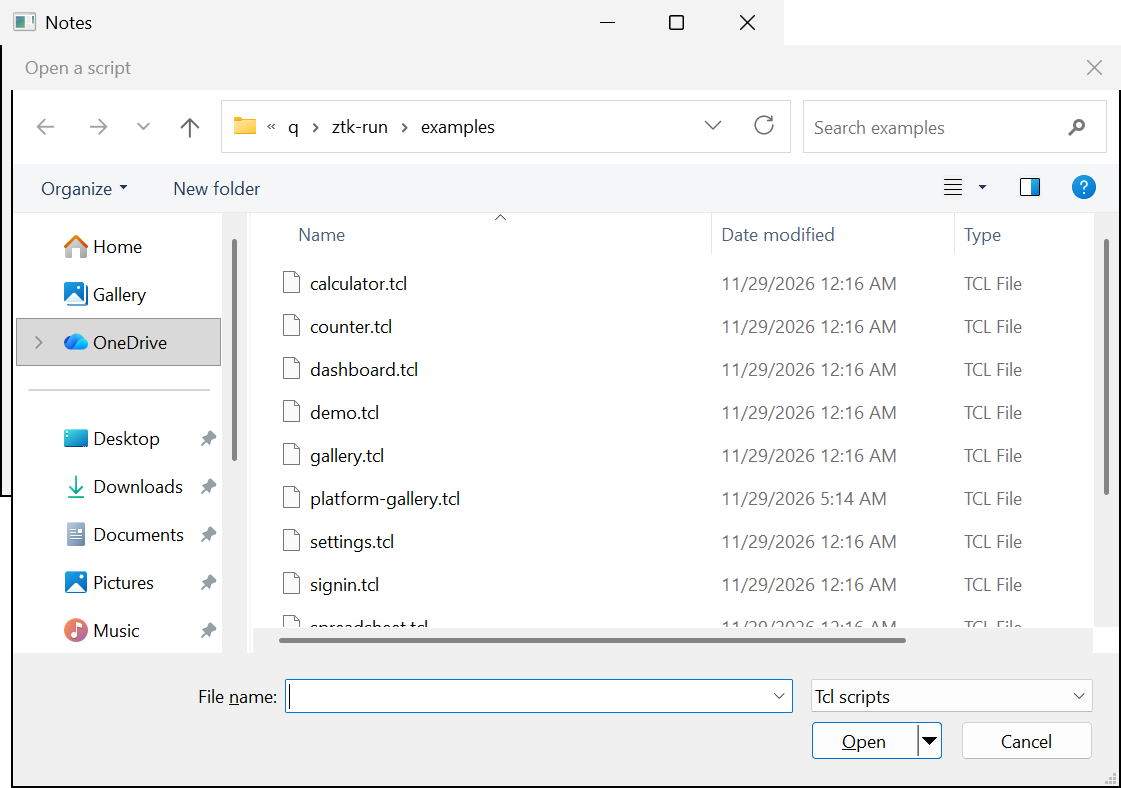
tk_getOpenFile shows the open dialog of Windows.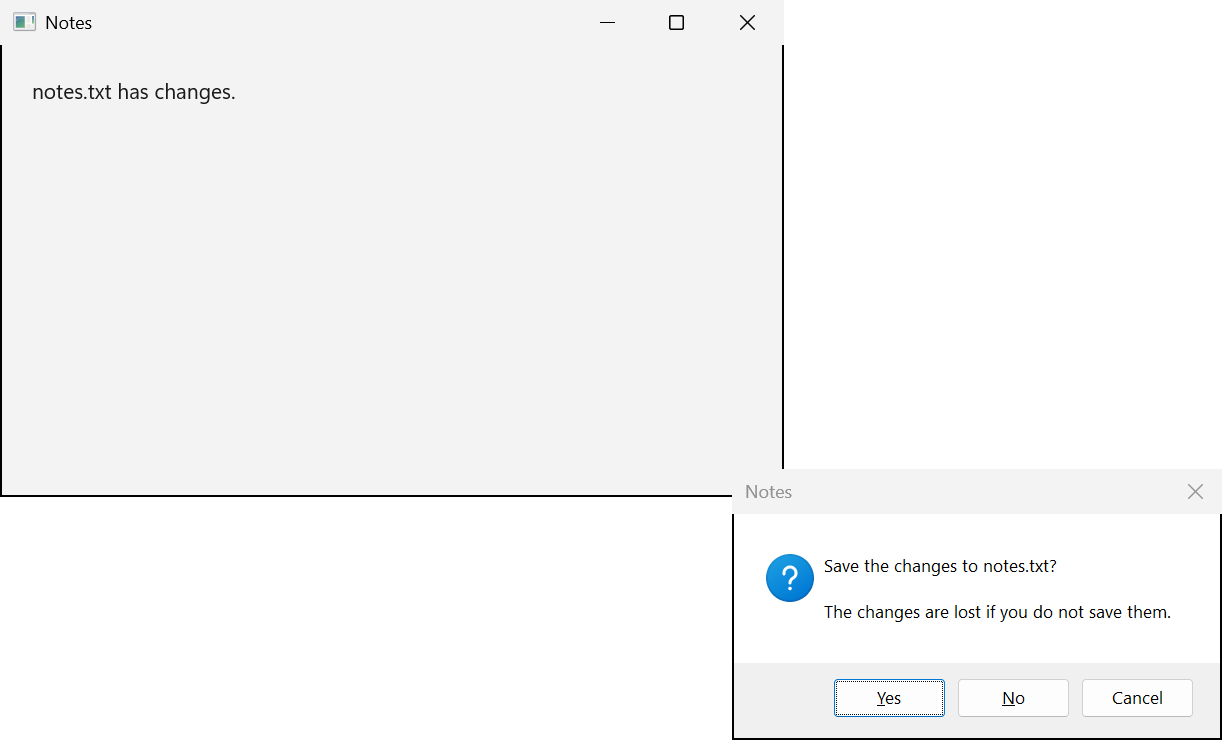
tk_messageBox shows the message box of Windows.The command waits for the answer, as in Tk. The file dialogs need the file capability, which the ztk program has by default.
Drags with Explorer
A widget gets files from Explorer and text from other apps with tkdnd::drop_target, and <<Drop>> gets the list of the paths in %D:
ttk::label .drop -text "Drop files here" -padding 40 -relief groove
pack .drop -padx 20 -pady 20 -fill both -expand 1
tkdnd::drop_target register .drop {DND_Files DND_Text}
bind .drop <<Drop>> {.drop configure -text "[llength %D] items"}
ztk::dnd drag .w -files [list $path] (or -text) in a binding of <B1-Motion> drags out of a window. It gives copy, move, or none. ztk::dnd has each option and event.
The backdrop of a window
ztk::win::backdrop sets the material that Windows 11 draws behind a window. The content of a ztk window is opaque, so the material shows in the title bar:
if {[ztk::has win]} {
    ztk::win::backdrop . mica
}
The values are auto, none, mica, acrylic, and tabbed. Windows 10 has no backdrops, and the command gives an error there.
File types
ztk::win::fileassoc puts the program in the list "Open with" of a file extension, for the user, with no rights of an administrator. Explorer then starts the program with the path of the file as its last argument:
if {[ztk::has win]} {
    ztk::win::fileassoc add .note -name "Note file" -args --open
}
The keys name the path of the program, so call add again after the program moves. ztk::win::fileassoc remove .note removes the handler. ztk::win::fileassoc has each option.
Global shortcuts
ztk::hotkey runs a script when a key goes down in any app. It needs the grant --allow hotkey:
ztk::hotkey add <Control-Alt-k> {wm deiconify .; raise .}
ztk --allow hotkey app.tcl
A shortcut that another app has gives an error.
Window states
| Command | The window |
|---|---|
wm attributes . -fullscreen 1 |
Fills the monitor, with no frame. |
wm attributes . -topmost 1 |
Stays above the other windows. |
wm state . zoomed |
Is maximized. wm state . gives zoomed also after a click on the maximize button. |
wm iconphoto . -default icon16 icon32 |
Gets the icon of the photo nearest to each size of the system. |
The next page, Limits, lists what does not work on Windows.