macOS
ztk runs a Tk script as a native Mac app on macOS 13 and later, on Apple silicon and on Intel. This section goes from the install to an app that you can give to other people.
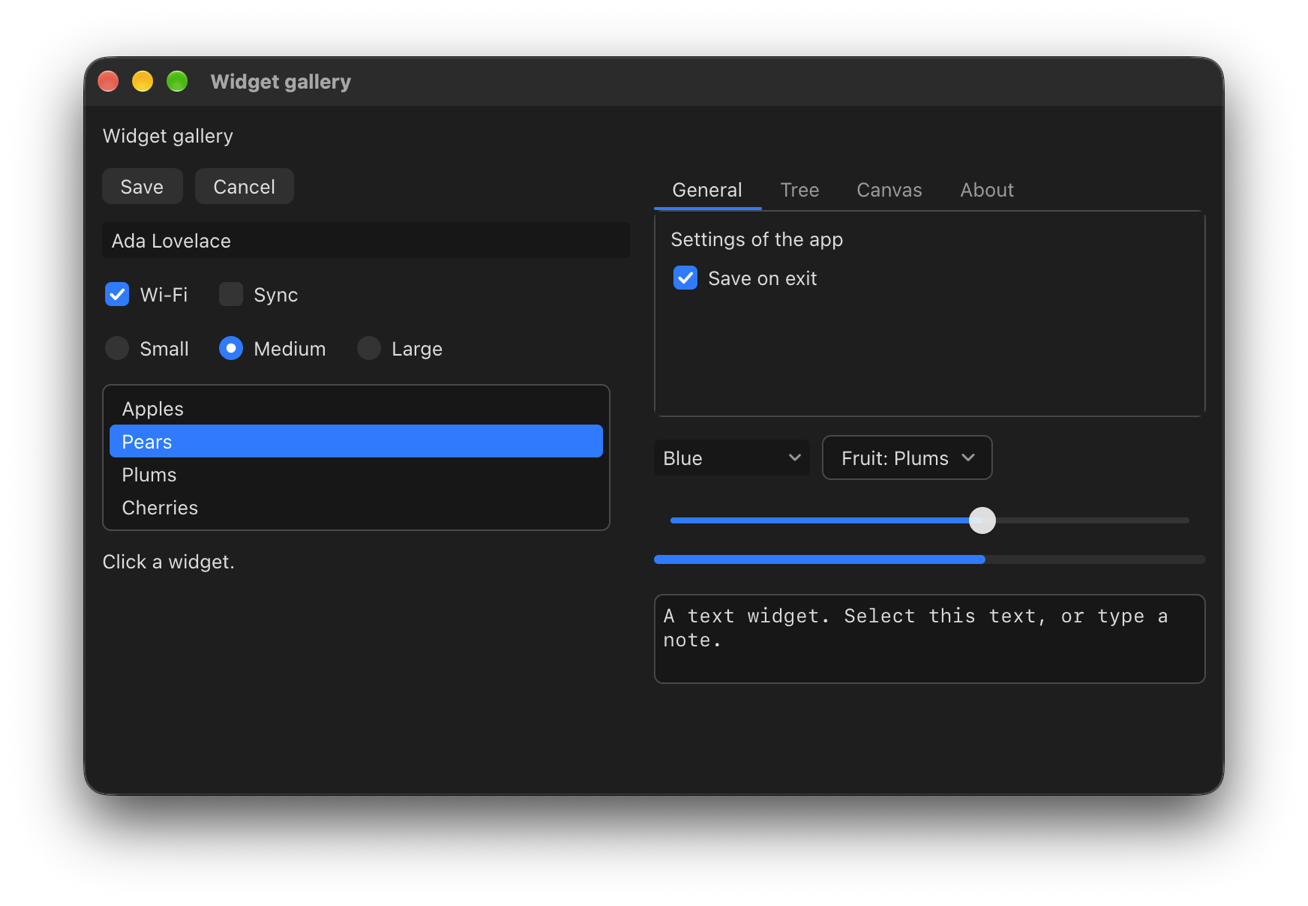
ztk examples/platform-gallery.tcl.What a script gets on macOS
Each toplevel is a window of macOS, with the title bar, the traffic lights, and the full screen of the system. Metal draws the content, and Core Text draws the text in SF Pro. The widgets have the look of AppKit, in the light and the dark appearance and with the accent color that you chose in System Settings.
The parts of macOS that a Mac user expects are native:
- The menu bar at the top of the screen, with the application menu (Menus).
- The file dialogs and the alerts, as sheets of their window.
- The Dock icon, with a badge, a progress bar, a bounce, and a menu.
- An icon in the menu bar for an app that runs in the background.
- Drags of files to and from Finder.
macOS features shows each one with a script.

From a script to an app
These three commands are the whole path. Install gives ztk, and Develop has each step.
brew install beetlebugorg/tap/ztk
# A window:
ztk hello.tcl
# An app for the Finder and the Dock:
ztk bundle -o Hello.app hello.tcl
hello.tcl can be one line:
ttk::button .b -text "Hello, Mac" -command exit; pack .b -padx 40 -pady 30
The pages of this section
- Install: Homebrew, the release archive, or a build from source.
- Develop: run, debug, test, and make an app that you can sign.
- Widgets: the look, the keys, and the text on macOS.
- Menus: the menu bar, the application menu, and the context menus.
- macOS features: the Dock, the menu bar icon, the dialogs, the drags, and the window tabs.
- Limits: what does not work on macOS.