Windows
ztk runs a Tk script as a native app on Windows 10 and Windows 11. This section goes from the install to a signed program that you can give to other people.
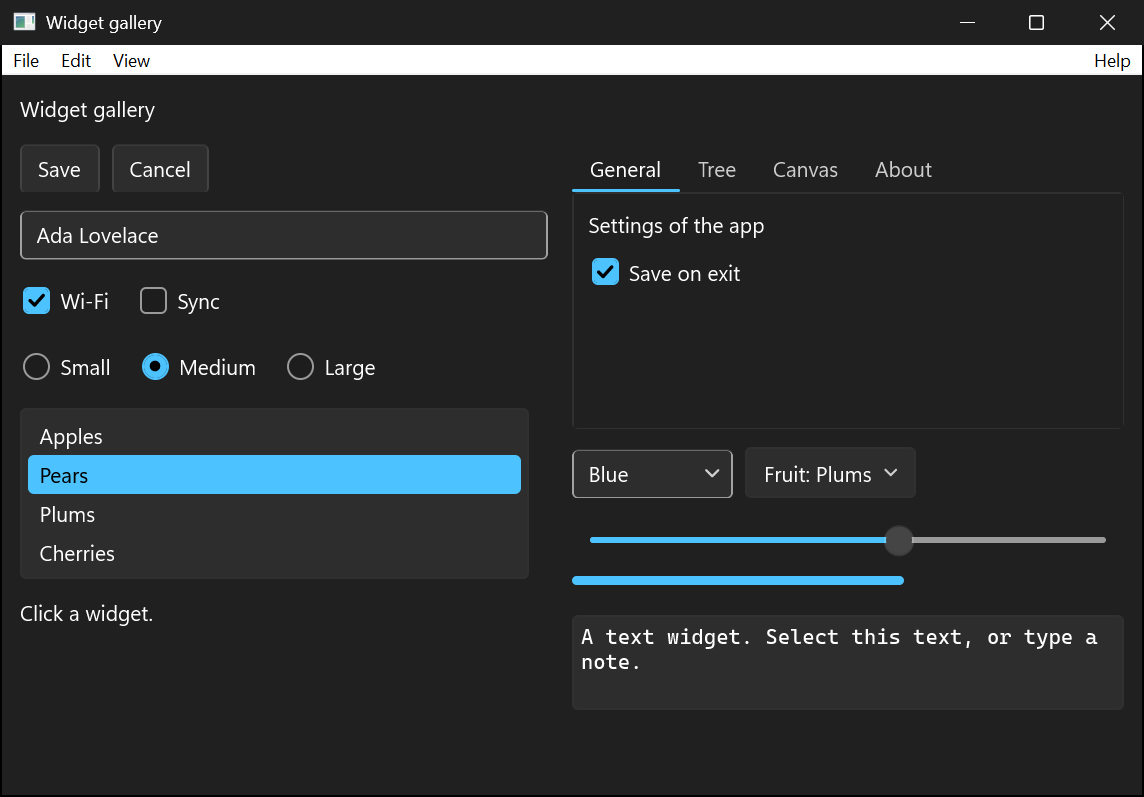
ztk examples/platform-gallery.tcl.What a script gets on Windows
Each toplevel is a window of Windows. Direct3D 12 draws the content, and DirectWrite draws the text in Segoe UI Variable. The widgets have the Fluent look of Windows 11 apps, in light and dark, with the accent color of the system.
The parts of Windows that a user expects are native:
| Part | Page |
|---|---|
| The menu bar of the window, and the context menus | Menus |
| The file, color, and font dialogs, and the message box | Windows features |
| The taskbar button: progress, a badge, a flash, a jump list, and buttons under the thumbnail | Windows features |
| An icon in the notification area | Windows features |
| Drags of files to and from Explorer | Windows features |
| Screen readers, through UI Automation | Widgets |
From a script to an app
ztk hello.tcl
ztk bundle -o hello.exe --icon hello.png hello.tcl
The first command opens a window. The second command writes one program file with the script inside it. hello.tcl can be one line:
ttk::button .b -text "Hello, Windows" -command exit; pack .b -padx 40 -pady 30
The pages of this section
- Install: the release archive, or a build from source.
- Develop: run, debug, test, and make a signed program.
- Widgets: the look, the scale, the keys, and the text on Windows.
- Menus: the menu bar, the keys, and the context menus.
- Windows features: the taskbar, the notification area, the dialogs, drags, backdrops, file types, and global shortcuts.
- Limits: what does not work on Windows.